
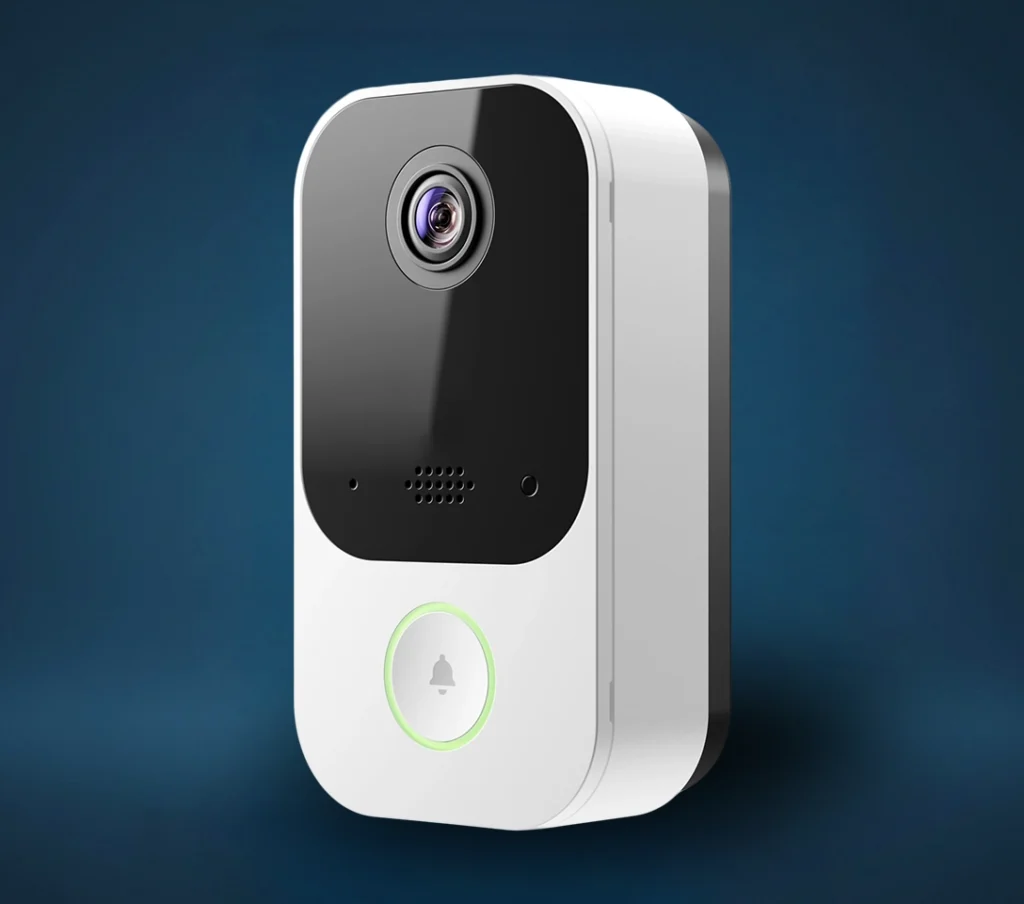
Video Doorbell Station+ smart video doorbell with HD camera, two-way audio, motion detection, and mobile app remote access for home security.

Specs

Resolution: 1440 x 1440, 2MP video

Field of View: 150° horizontal and 150° vertical

Connection Type: Power over Ethernet, not Wi-Fi

Night Vision: Infrared night vision up to 15 ft / 5 m

Audio: Two-way audio

Smart Detection: People Detection

App Access: Live video and saved clips through Alarm.com

Operating Temperature: -58°F to 122°F / -50°C to 50°C

Size: 2.45” W x 4.50” L x 1.54” D

Kit Contents

Common kits include the valve plus compatible flood sensors

Documentation

Saved video settings can be customized for the Video Doorbell Station+.

Follow these guidelines to optimize motion detection.
To adjust saved video image settings using the Grand Alarms customer website:
1. Log in to the Grand Alarms customer website.
2. Click Video.
3. Click Settings.
4. Using the Video Device dropdown menu, select the desired camera.
5. Click Saved Video.
6. Using the Resolution (pixels) dropdown menu, select the desired video resolution.
7. Click Save.

Users can configure the Video Doorbell Station+’s motion detection settings to only capture what is important.
Follow these guidelines to optimize motion detection.

To adjust the sensitivity using the Grand Alarms customer website:

1. Log in to the Grand Alarms customer website.
2. Tap Video.
3. Tap
4. Tap Recording Rules.
5. Tap on the desired rule.
6. Using the Sensitivity slider, adjust the sensitivity up to increase the sensitivity or down to decrease the sensitivity.
7. Tap Save.

To adjust the sensitivity using the Grand Alarms app:

1. Log in to the Grand Alarms app.
2. Click Video.
3. Click Recording Rules.
4. Click on the desired rule.
5. Using the Sensitivity slider, adjust the sensitivity up to increase the sensitivity or down to decrease the sensitivity.
6. Click Save.

  • Avoid overlapping ground zones with objects that are prone to movement (e.g., such as trees, bushes, or other objects that move in the wind).

  • Only draw the rule where the feet of the person should enter.

◦ Do not increase the size of the Ground Zone to cover the whole of the person.
◦ Do not include walls, trees, or other structures in the rule/selection.

  • After observing what the rule detects over a few days, consider adjusting the Detection Sensitivity slider higher for more triggers or lower for fewer.

For more information about Video Analytics best practices in general, see Video Analytics best practices.

The Grand Alarms Video Door Station+ does not make a humming or buzzing sound, but the chime can.
On a small number of installations, mechanical chimes can buzz or hum, indicating the current is running through the
chime when the button is not pressed.

An incorrectly configured Video Door Station+ or a transformer that is too old can cause a buzzing door chime.
The Video Door Station+ configuration requirements change based on what type of door chime is on the circuit.

Verify the chime power requirements are met
Ensure that the transformer powering the chime is correctly rated for the chime and performing according to the chime
specifications. If you have any questions, consult the chime manual or contact the device manufacturer.

Verify the door chime type
For information about how to tell the difference between a mechanical and a digital chime, see What types of chimes are
compatible with the Video Door Station+?

Verify the Video Door Station+ chime configuration is correct
The current chime type selected for the Video Door Station+ can be verified and adjusted using the doorbell button, Partner Portal,
Partner MobileTech app, Grand Alarms customer website, and Grand Alarms app.

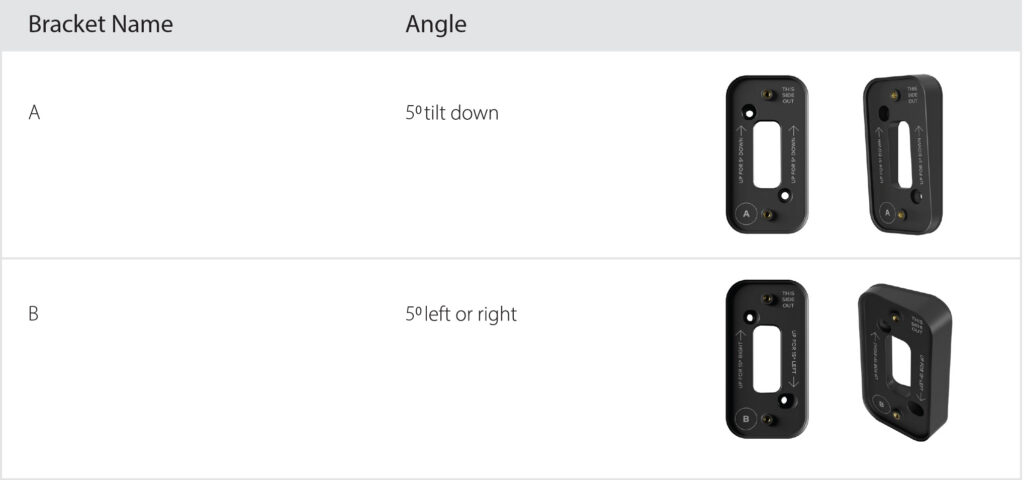
When a wedge mounting bracket is used to install the Video Doorbell Station+, the wedge setting must be enabled for optimal Video Analytics motion detection. For more information about what types of wedges are available for the Video Doorbell Station+, see Are there additional mounting brackets for the Video Doorbell Station+?.

Important: Enabling this setting is only needed when using the downward wedge. The left and right wedges do not affect the calibration of Video Analytics.

Enable the wedge setting

To enable the wedge setting using the Grand Alarms customer website:
1. Log in to the Grand Alarms customer website.
2. Click Video.
3. Click Settings.
4. Using the Video Device dropdown menu, select the desired video device.
5. Click Video Device Info.
6. Using the Downward Wedge Installed dropdown menu, select Yes to indicate a wedge is used to mount the Video Doorbell Station+
7. Click Save.

To enable the wedge setting using the Grand Alarms app:
1. Log in to the Grand Alarms app.
2. Tap Doorbell Camera.
3. Tap .
4. Tap the desired video device.
5. Tap General.
6. Using the Wedge dropdown menu, select Yes to indicate a wedge is used to mount the Video Doorbell Station+.
7. Tap Save.

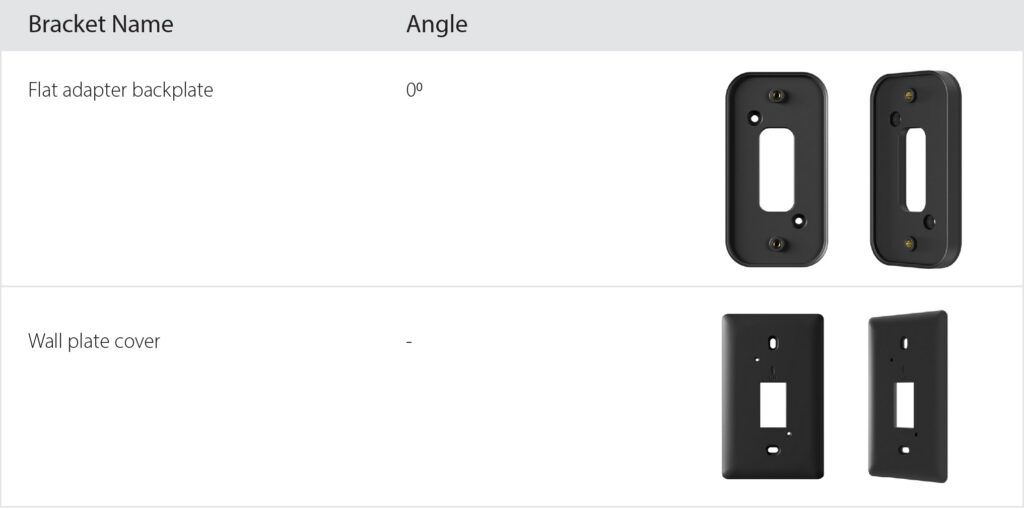
Yes. Additional mounting brackets for the ADC-VDB755P include the Single-gang Mounting Plate Kit (ADC-VDBA-755P-MNT) and the Wedge Mount Kit (ADC-VDBA-755P-WMK) that includes two additional wedge types.

The additional wedges allow the user to achieve more extreme left/right pans for installation on walls perpendicular to the door. It also adds different options for tilt combined with left/right pan to allow for expanded vFoV to the ground, minimizing the blind spot at the bottom of the field of view to capture smaller packages

Important: The correct wedge type must be selected after installing a new mounting bracket. For more information about how to choose the wedge type, see Enable the wedge setting for the Video Doorbell Station+.

Wedge mount kit (ADC-VDBA-755P-WMK)
Single-gang mounting plate kit (ADC-VDBA-755P-MNT)
 

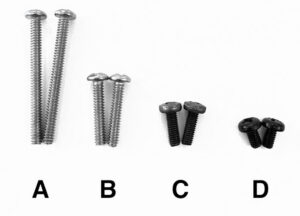
Screw usage guide included in the ADC-VDBA-755P-MNT kit:

The ADC-VDBA-755P-MNT includes a flat adapter that can be used for installations where the single-gang box is installed in a way that requires the adapter for the Video Doorbell Station+ to be installed flush with the wall plate.

Note: Only one screw set, A or B, needs to be used; two different lengths are provided for the installer’s preference.
Screw sets C and D are optional only if the installer wants to install the wedge or flat adapter on top of the wall plate.
Screw set A:
• Screw size: 6-32 x 1.5″
• Standard Installation: Use to screw the Video Doorbell Station+ and wall plate to the junction box.
• Wedge or Flat Adapter Installation: Use to screw the wall plate to the junction box.

Screw set B:
• Screw size: 6-32 x .75″
• Standard Installation: Use to screw the Video Doorbell Station+ and wall plate to the junction box.
• Wedge or Flat Adapter Installation: Use to screw the wall plate to the junction box.

Screw set C (optional):
• Screw size: 3.5mm x 10mm
• Wedge or Flat Adapter Installation: Use to screw the wedge or flat adapter to the wall plate using the diagonally oriented threaded inserts.

Screw set D (optional):
• Screw size: 3.5mm x 6mm
• Wedge or Flat Adapter Installation: Use to screw the Video Doorbell Station+ to the wedge or flat adapter.


Resetting a video device to its factory defaults removes all programming from the device.

Important: Wait at least two minutes for the video device to power on fully before performing the following procedure. The factory reset might fail if the device is still powering on.

Frequently Asked Questions

How do I view live video from my Video Doorbell Station+?

You can view live video from the Alarm.com app or customer website. Open the app, go to the Video section, and select your Video Doorbell Station+. From there, you can see who is at the door, listen, speak, and review available clips if video recording is enabled on your account.

The Video Doorbell Station+ supports 2MP video, 1440 x 1440 resolution, and a wide 150° horizontal and 150° vertical field of view, giving you a full view of the entry area.

When someone presses the doorbell button, you should receive a notification on your phone if notifications are enabled. Tap the alert to open the live doorbell view. From there, you can see the visitor and use two-way audio to speak with them.

If you are not receiving alerts, check that push notifications are enabled for the Alarm.com app, your phone is not in Do Not Disturb mode, and doorbell call notifications are turned on in your Alarm.com settings.

Yes. The Video Doorbell Station+ includes two-way audio, so you can speak with someone at the door through the Alarm.com app. This is useful for deliveries, visitors, service calls, or confirming who is at the door before answering.

For best performance, make sure your phone has microphone permission enabled for the Alarm.com app and that your internet connection is stable.

No. This model uses Power over Ethernet, usually called PoE. That means it receives its network connection and power through an Ethernet cable instead of relying on Wi-Fi.

This is one of the biggest advantages of the Video Doorbell Station+ because it gives the doorbell a more reliable connection than many wireless video doorbells.

PoE stands for Power over Ethernet. It means one Ethernet cable can provide both power and internet connection to the Video Doorbell Station+.

This helps reduce common Wi-Fi doorbell issues like weak signal, random disconnects, delayed video, or unreliable notifications. A PoE setup usually requires compatible wiring and PoE equipment, such as a PoE switch, injector, or compatible recorder setup.

If your Video Doorbell Station+ shows offline, it is usually related to power, network connection, or equipment between the doorbell and your internet router.

Check the following:
1. Make sure your internet is working.
2. Confirm the Ethernet cable is connected securely.
3. Check that the PoE switch, injector, or connected equipment has power.
4. Restart your router or networking equipment.
5. Wait a few minutes for the doorbell to reconnect.

If it still shows offline, the issue may be with the Ethernet cable, PoE power source, or network configuration. At that point, it is best to contact support.

Notification issues usually come from phone settings, app permissions, or Alarm.com alert settings.

Check that:
1. Alarm.com notifications are enabled on your phone.
2. Your phone is not in Do Not Disturb or Focus mode.
3. The Alarm.com app has permission to send alerts.
4. Doorbell call and video notification rules are enabled.
5. Your doorbell is online.

If you get some notifications but not all, your motion or people detection settings may need adjustment.

In the Alarm.com app, go to your video settings and review the recording rules or video analytics settings for the Video Doorbell Station+. Depending on your service plan, you may be able to adjust detection areas, notification rules, and which events create alerts.

The Video Doorbell Station+ supports Video Analytics with People Detection, which helps reduce false alerts by focusing on people instead of general movement.

Too many alerts usually mean the detection area is too broad or the camera is seeing a busy area such as a sidewalk, road, tree, flag, or reflective surface.

To reduce unwanted alerts:

1. Adjust the detection area.
2. Use People Detection where available.
3. Avoid aiming the doorbell directly at high-traffic areas.
4. Reduce overly sensitive alert rules.
5. Check for moving objects near the door, such as hanging decorations.

The goal is to capture people approaching your door, not every car, branch, shadow, or neighbour walking their dog.

If the Video Doorbell Station+ is not detecting people properly, the issue may be the angle, mounting height, lighting, or detection area.

Check that the doorbell has a clear view of the entry path and that people are walking through the selected detection zone. If the camera is angled too high, too low, or too far to one side, it may miss activity close to the door. Wedge mounting accessories may help improve the viewing angle in certain installations.

Yes, the Video Doorbell Station+ can support saved video clips through Alarm.com when video recording is included in your service plan. You can view saved clips through the Alarm.com app or customer website.

Clip recording depends on your account setup, recording rules, and service package. If live video works but clips are not saving, check your recording rules or contact support to confirm that video recording is active on your account.

It can support SVR recording when connected with compatible Alarm.com SVR equipment and the proper service setup. SVR stands for Stream Video Recorder, and it allows local encrypted video recording with remote viewing access.

This is different from standard event-based clip recording. If you need continuous recording, your system must be set up specifically for that feature.

Yes. The Video Doorbell Station+ includes infrared night vision and can see in low-light conditions. Its night vision is designed to help capture activity near the door when it is dark.

For best night performance, keep the camera lens clean and avoid pointing it directly at reflective surfaces, bright porch lights, glass, or shiny trim. Infrared glare can make the image look foggy or washed out.

Foggy or washed-out night video is usually caused by glare, dirt, moisture, spider webs, or nearby reflective surfaces.

Clean the lens gently with a soft cloth and check for anything close to the camera that could reflect infrared light back into the lens. Also check nearby lighting. A light placed too close to the doorbell can overpower the image, while a reflective wall, glass panel, or metal trim can bounce IR light back at the camera.

Yes. The Video Doorbell Station+ supports several image adjustments, including flip, brightness, contrast, saturation, sharpness, and exposure. These settings can help improve the image if the camera view is too dark, too bright, upside down, or not clear enough.

These adjustments are useful, but they will not fix a poor camera angle. If the doorbell is aimed incorrectly, the physical position may need to be adjusted.

Yes, it can be used with compatible chime options depending on how the system is installed and configured.

If the doorbell works in the app but the indoor chime does not sound, the chime setting, wiring, or compatible chime setup may need to be checked. Contact support if the chime is not working as expected.

Yes. The Video Doorbell Station+ is designed for outdoor use and has a wide operating temperature range of -58°F to 122°F or -50°C to 50°C.

That said, “outdoor rated” does not mean it should be exposed to unnecessary abuse. A properly mounted location with reasonable protection from direct water exposure is still better for long-term performance.

After a power or internet outage, give the Video Doorbell Station+ a few minutes to reconnect. Since it uses PoE, the doorbell depends on the connected networking equipment for both power and internet.

If it does not come back online:
1. Confirm your internet is working.
2. Restart your router.
3. Check the PoE switch or injector.
4. Make sure all Ethernet cables are firmly connected.
5. Open the Alarm.com app and check the device status.

If it stays offline after those steps, contact support so the wiring, PoE equipment, or device connection can be checked properly.

Yes, but it is not as simple as moving a battery camera. Because this is a PoE doorbell, the new location needs Ethernet wiring and a compatible power/network setup.

The viewing angle also matters because doorbell placement affects people detection, video quality, and visitor visibility. If you want it moved, it is best to schedule a service visit.

If the button works but video does not load, the doorbell may have power but still be dealing with a network, app, or video service issue.

Try this:
1. Close and reopen the Alarm.com app.
2. Check if other Alarm.com video devices are working.
3. Confirm your phone has internet.
4. Restart your modem or router.
5. Check whether the Video Doorbell Station+ is showing online.
6. Try viewing from the Alarm.com customer website.

If live video still does not load, contact support. The issue may be related to service settings, network configuration, or the connected PoE equipment.

Refer a Friend or Family Member

When someone you refer joins Grand Alarms, you’ll receive 2 months of free service as a thank-you.

Need More Help?

Video Doorbell Station+ smart video doorbell with HD camera, two-way audio, motion detection, and mobile app remote access for home security.

Specs

Resolution: 1440 x 1440, 2MP video

Field of View: 150° horizontal and 150° vertical

Connection Type: Power over Ethernet, not Wi-Fi

Night Vision: Infrared night vision up to 15 ft / 5 m

Audio: Two-way audio

Smart Detection: People Detection

App Access: Live video and saved clips through Alarm.com

Operating Temperature: -58°F to 122°F / -50°C to 50°C

Size: 2.45” W x 4.50” L x 1.54” D

Kit Contents

Common kits include the valve plus compatible flood sensors

Documentation

Saved video settings can be customized for the Video Doorbell Station+.

Follow these guidelines to optimize motion detection.
To adjust saved video image settings using the Grand Alarms customer website:
1. Log in to the Grand Alarms customer website.
2. Click Video.
3. Click Settings.
4. Using the Video Device dropdown menu, select the desired camera.
5. Click Saved Video.
6. Using the Resolution (pixels) dropdown menu, select the desired video resolution.
7. Click Save.

Users can configure the Video Doorbell Station+’s motion detection settings to only capture what is important.
Follow these guidelines to optimize motion detection.

To adjust the sensitivity using the Grand Alarms customer website:

1. Log in to the Grand Alarms customer website.
2. Tap Video.
3. Tap
4. Tap Recording Rules.
5. Tap on the desired rule.
6. Using the Sensitivity slider, adjust the sensitivity up to increase the sensitivity or down to decrease the sensitivity.
7. Tap Save.

To adjust the sensitivity using the Grand Alarms app:

1. Log in to the Grand Alarms app.
2. Click Video.
3. Click Recording Rules.
4. Click on the desired rule.
5. Using the Sensitivity slider, adjust the sensitivity up to increase the sensitivity or down to decrease the sensitivity.
6. Click Save.

  • Avoid overlapping ground zones with objects that are prone to movement (e.g., such as trees, bushes, or other objects that move in the wind).

  • Only draw the rule where the feet of the person should enter.

◦ Do not increase the size of the Ground Zone to cover the whole of the person.
◦ Do not include walls, trees, or other structures in the rule/selection.

  • After observing what the rule detects over a few days, consider adjusting the Detection Sensitivity slider higher for more triggers or lower for fewer.

For more information about Video Analytics best practices in general, see Video Analytics best practices.

The Grand Alarms Video Door Station+ does not make a humming or buzzing sound, but the chime can.
On a small number of installations, mechanical chimes can buzz or hum, indicating the current is running through the
chime when the button is not pressed.

An incorrectly configured Video Door Station+ or a transformer that is too old can cause a buzzing door chime.
The Video Door Station+ configuration requirements change based on what type of door chime is on the circuit.

Verify the chime power requirements are met
Ensure that the transformer powering the chime is correctly rated for the chime and performing according to the chime
specifications. If you have any questions, consult the chime manual or contact the device manufacturer.

Verify the door chime type
For information about how to tell the difference between a mechanical and a digital chime, see What types of chimes are
compatible with the Video Door Station+?

Verify the Video Door Station+ chime configuration is correct
The current chime type selected for the Video Door Station+ can be verified and adjusted using the doorbell button, Partner Portal,
Partner MobileTech app, Grand Alarms customer website, and Grand Alarms app.

When a wedge mounting bracket is used to install the Video Doorbell Station+, the wedge setting must be enabled for optimal Video Analytics motion detection. For more information about what types of wedges are available for the Video Doorbell Station+, see Are there additional mounting brackets for the Video Doorbell Station+?.

Important: Enabling this setting is only needed when using the downward wedge. The left and right wedges do not affect the calibration of Video Analytics.

Enable the wedge setting

To enable the wedge setting using the Grand Alarms customer website:
1. Log in to the Grand Alarms customer website.
2. Click Video.
3. Click Settings.
4. Using the Video Device dropdown menu, select the desired video device.
5. Click Video Device Info.
6. Using the Downward Wedge Installed dropdown menu, select Yes to indicate a wedge is used to mount the Video Doorbell Station+
7. Click Save.

To enable the wedge setting using the Grand Alarms app:
1. Log in to the Grand Alarms app.
2. Tap Doorbell Camera.
3. Tap .
4. Tap the desired video device.
5. Tap General.
6. Using the Wedge dropdown menu, select Yes to indicate a wedge is used to mount the Video Doorbell Station+.
7. Tap Save.

Yes. Additional mounting brackets for the ADC-VDB755P include the Single-gang Mounting Plate Kit (ADC-VDBA-755P-MNT) and the Wedge Mount Kit (ADC-VDBA-755P-WMK) that includes two additional wedge types.

The additional wedges allow the user to achieve more extreme left/right pans for installation on walls perpendicular to the door. It also adds different options for tilt combined with left/right pan to allow for expanded vFoV to the ground, minimizing the blind spot at the bottom of the field of view to capture smaller packages

Important: The correct wedge type must be selected after installing a new mounting bracket. For more information about how to choose the wedge type, see Enable the wedge setting for the Video Doorbell Station+.

Wedge mount kit (ADC-VDBA-755P-WMK)

Single-gang mounting plate kit (ADC-VDBA-755P-MNT)


Screw usage guide included in the ADC-VDBA-755P-MNT kit:

The ADC-VDBA-755P-MNT includes a flat adapter that can be used for installations where the single-gang box is installed in a way that requires the adapter for the Video Doorbell Station+ to be installed flush with the wall plate.

Note: Only one screw set, A or B, needs to be used; two different lengths are provided for the installer’s preference.
Screw sets C and D are optional only if the installer wants to install the wedge or flat adapter on top of the wall plate.

Screw set A:
• Screw size: 6-32 x 1.5″
• Standard Installation: Use to screw the Video Doorbell Station+ and wall plate to the junction box.
• Wedge or Flat Adapter Installation: Use to screw the wall plate to the junction box.

Screw set B:
• Screw size: 6-32 x .75″
• Standard Installation: Use to screw the Video Doorbell Station+ and wall plate to the junction box.
• Wedge or Flat Adapter Installation: Use to screw the wall plate to the junction box.

Screw set C (optional):
• Screw size: 3.5mm x 10mm
• Wedge or Flat Adapter Installation: Use to screw the wedge or flat adapter to the wall plate using the diagonally oriented threaded inserts.

Screw set D (optional):
• Screw size: 3.5mm x 6mm
• Wedge or Flat Adapter Installation: Use to screw the Video Doorbell Station+ to the wedge or flat adapter.


Resetting a video device to its factory defaults removes all programming from the device.

Important: Wait at least two minutes for the video device to power on fully before performing the following procedure. The factory reset might fail if the device is still powering on.

Frequently Asked Questions

How do I view live video from my Video Doorbell Station+?

You can view live video from the Alarm.com app or customer website. Open the app, go to the Video section, and select your Video Doorbell Station+. From there, you can see who is at the door, listen, speak, and review available clips if video recording is enabled on your account.

The Video Doorbell Station+ supports 2MP video, 1440 x 1440 resolution, and a wide 150° horizontal and 150° vertical field of view, giving you a full view of the entry area.

When someone presses the doorbell button, you should receive a notification on your phone if notifications are enabled. Tap the alert to open the live doorbell view. From there, you can see the visitor and use two-way audio to speak with them.

If you are not receiving alerts, check that push notifications are enabled for the Alarm.com app, your phone is not in Do Not Disturb mode, and doorbell call notifications are turned on in your Alarm.com settings.

Yes. The Video Doorbell Station+ includes two-way audio, so you can speak with someone at the door through the Alarm.com app. This is useful for deliveries, visitors, service calls, or confirming who is at the door before answering.

For best performance, make sure your phone has microphone permission enabled for the Alarm.com app and that your internet connection is stable.

No. This model uses Power over Ethernet, usually called PoE. That means it receives its network connection and power through an Ethernet cable instead of relying on Wi-Fi.

This is one of the biggest advantages of the Video Doorbell Station+ because it gives the doorbell a more reliable connection than many wireless video doorbells.

PoE stands for Power over Ethernet. It means one Ethernet cable can provide both power and internet connection to the Video Doorbell Station+.

This helps reduce common Wi-Fi doorbell issues like weak signal, random disconnects, delayed video, or unreliable notifications. A PoE setup usually requires compatible wiring and PoE equipment, such as a PoE switch, injector, or compatible recorder setup.

If your Video Doorbell Station+ shows offline, it is usually related to power, network connection, or equipment between the doorbell and your internet router.

Check the following:
1. Make sure your internet is working.
2. Confirm the Ethernet cable is connected securely.
3. Check that the PoE switch, injector, or connected equipment has power.
4. Restart your router or networking equipment.
5. Wait a few minutes for the doorbell to reconnect.

If it still shows offline, the issue may be with the Ethernet cable, PoE power source, or network configuration. At that point, it is best to contact support.

Notification issues usually come from phone settings, app permissions, or Alarm.com alert settings.

Check that:
1. Alarm.com notifications are enabled on your phone.
2. Your phone is not in Do Not Disturb or Focus mode.
3. The Alarm.com app has permission to send alerts.
4. Doorbell call and video notification rules are enabled.
5. Your doorbell is online.

If you get some notifications but not all, your motion or people detection settings may need adjustment.

In the Alarm.com app, go to your video settings and review the recording rules or video analytics settings for the Video Doorbell Station+. Depending on your service plan, you may be able to adjust detection areas, notification rules, and which events create alerts.

The Video Doorbell Station+ supports Video Analytics with People Detection, which helps reduce false alerts by focusing on people instead of general movement.

Too many alerts usually mean the detection area is too broad or the camera is seeing a busy area such as a sidewalk, road, tree, flag, or reflective surface.

To reduce unwanted alerts:

1. Adjust the detection area.
2. Use People Detection where available.
3. Avoid aiming the doorbell directly at high-traffic areas.
4. Reduce overly sensitive alert rules.
5. Check for moving objects near the door, such as hanging decorations.

The goal is to capture people approaching your door, not every car, branch, shadow, or neighbour walking their dog.

If the Video Doorbell Station+ is not detecting people properly, the issue may be the angle, mounting height, lighting, or detection area.

Check that the doorbell has a clear view of the entry path and that people are walking through the selected detection zone. If the camera is angled too high, too low, or too far to one side, it may miss activity close to the door. Wedge mounting accessories may help improve the viewing angle in certain installations.

Yes, the Video Doorbell Station+ can support saved video clips through Alarm.com when video recording is included in your service plan. You can view saved clips through the Alarm.com app or customer website.

Clip recording depends on your account setup, recording rules, and service package. If live video works but clips are not saving, check your recording rules or contact support to confirm that video recording is active on your account.

It can support SVR recording when connected with compatible Alarm.com SVR equipment and the proper service setup. SVR stands for Stream Video Recorder, and it allows local encrypted video recording with remote viewing access.

This is different from standard event-based clip recording. If you need continuous recording, your system must be set up specifically for that feature.

Yes. The Video Doorbell Station+ includes infrared night vision and can see in low-light conditions. Its night vision is designed to help capture activity near the door when it is dark.

For best night performance, keep the camera lens clean and avoid pointing it directly at reflective surfaces, bright porch lights, glass, or shiny trim. Infrared glare can make the image look foggy or washed out.

Foggy or washed-out night video is usually caused by glare, dirt, moisture, spider webs, or nearby reflective surfaces.

Clean the lens gently with a soft cloth and check for anything close to the camera that could reflect infrared light back into the lens. Also check nearby lighting. A light placed too close to the doorbell can overpower the image, while a reflective wall, glass panel, or metal trim can bounce IR light back at the camera.

Yes. The Video Doorbell Station+ supports several image adjustments, including flip, brightness, contrast, saturation, sharpness, and exposure. These settings can help improve the image if the camera view is too dark, too bright, upside down, or not clear enough.

These adjustments are useful, but they will not fix a poor camera angle. If the doorbell is aimed incorrectly, the physical position may need to be adjusted.

Yes, it can be used with compatible chime options depending on how the system is installed and configured.

If the doorbell works in the app but the indoor chime does not sound, the chime setting, wiring, or compatible chime setup may need to be checked. Contact support if the chime is not working as expected.

Yes. The Video Doorbell Station+ is designed for outdoor use and has a wide operating temperature range of -58°F to 122°F or -50°C to 50°C.

That said, “outdoor rated” does not mean it should be exposed to unnecessary abuse. A properly mounted location with reasonable protection from direct water exposure is still better for long-term performance.

After a power or internet outage, give the Video Doorbell Station+ a few minutes to reconnect. Since it uses PoE, the doorbell depends on the connected networking equipment for both power and internet.

If it does not come back online:
1. Confirm your internet is working.
2. Restart your router.
3. Check the PoE switch or injector.
4. Make sure all Ethernet cables are firmly connected.
5. Open the Alarm.com app and check the device status.

If it stays offline after those steps, contact support so the wiring, PoE equipment, or device connection can be checked properly.

Yes, but it is not as simple as moving a battery camera. Because this is a PoE doorbell, the new location needs Ethernet wiring and a compatible power/network setup.

The viewing angle also matters because doorbell placement affects people detection, video quality, and visitor visibility. If you want it moved, it is best to schedule a service visit.

If the button works but video does not load, the doorbell may have power but still be dealing with a network, app, or video service issue.

Try this:
1. Close and reopen the Alarm.com app.
2. Check if other Alarm.com video devices are working.
3. Confirm your phone has internet.
4. Restart your modem or router.
5. Check whether the Video Doorbell Station+ is showing online.
6. Try viewing from the Alarm.com customer website.

If live video still does not load, contact support. The issue may be related to service settings, network configuration, or the connected PoE equipment.

Request your free quote

Looking for the best security company near you? Fill out this quick form, and one of our local security experts will call you back the same day.

Request your free quote

Looking for the best security company near you? Fill out this quick form, and one of our local security experts will call you back the same day.

Request your free quote

Looking for the best security company near you? Fill out this quick form, and one of our local security experts will call you back the same day.

Request your free quote

Looking for the best security company near you? Fill out this quick form, and one of our local security experts will call you back the same day.