
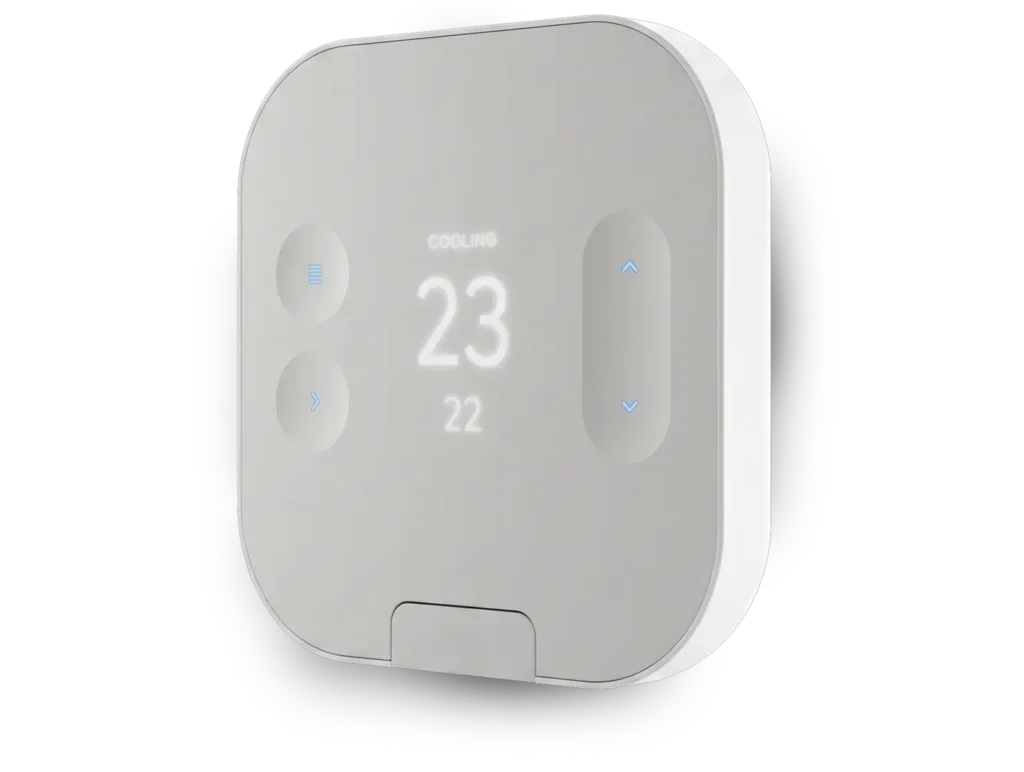
Specs
Dimensions:
(H x W x D): 4.7 x 4.7 x 1″
(12 x 12 x 2.6 cm)
Operating temperature:
41°F to 95°F (5°C to 35°C)
Communication:
Z-Wave SmartStart Z-Wave, S2 Authenticated, Unauthenticated, Z-Wave Long Range
Compatible Systems:
Near Universal 24 VAC
Compatibility: Yes
Humidifier: Yes
Dehumidifier: Yes
Forced Air: Yes
Heat pump: Yes- Compatible with both O and B systems
Heat: Up to 3 stages
Cool: Up to 2 stages
Dual Fuel: Yes
Ventilation Control: HRV, ERV, External Air Baffle
Power: 24 VAC / 4x AA Batteries
Colours
Documentation
Data Sheet
Installation Guide
Features
- Rich OLED display for simple
configuration - HVAC Wire Detection and Auto Configuration
- Long battery life. No C-wire required
- Z-Wave SmartStart, S2 and LongRange Compatible
- Full integration with the Alarm.com platform – Scenes, Energy Saving Schedules, and Pro HVAC Monitoring.
- Humidity control
- Vent control
- Compatible with Alarm.com Temperature Sensor
Terminal Guide
Panel Compatibility
Enrollment
If the Z-Wave controller is not SmartStart or S2-compatible, this device can be enrolled as an S0 device.
- Place the Z-Wave controller into add mode.
- Press
on the thermostat.
- Select Settings.
- Select Network.
- Select Add.
Note: Press or
to view the thermostat options, then press
to make a selection.
Factory Reset
Press on the thermostat.
- Select Settings.
- Select Installer.
- Select Continue.
- Select Reset.
- Select Yes.
Note: Press or
to view the thermostat options, then press
to make a selection.
Accessories Included
- T25 Smart Thermostat
- User Guide
- Drywall anchors and screws
- Trim Plate
Videos
Frequently Asked Questions
How do I change the temperature on my Smart Touch Thermostat?
You can change the temperature at the thermostat itself or through the Grand Alarms Smart Home App. In the app, open the thermostat controls and adjust the setpoint up or down. The Smart Touch Thermostat supports remote control of setpoint and mode through the platform.
How do I change my thermostat from heat to cool?
You can switch modes from the thermostat display or in the Grand Alarms Smart Home App. The Smart Touch Thermostat supports mode changes remotely, including heating and cooling control through the app.
How do I create a schedule for my Smart Touch Thermostat?
Use the Grand Alarms Smart Home App to build a comfort schedule around your routine. The Smart Touch Thermostat supports schedules, rules, and scenes through the platform so you can automate temperature changes throughout the day.
How do I control my thermostat when I am away from home?
How do I know if my Smart Touch Thermostat needs new batteries?
If the batteries are low, the thermostat will show a low-battery condition. The Smart Touch Thermostat uses 4 AA batteries, and the installation guide says to replace them with four new AA batteries when needed.
How do I replace the batteries in my Smart Touch Thermostat?
How do I know if my Smart Touch Thermostat works with my heating and cooling system?
The Smart Touch Thermostat is designed to work with most common residential HVAC systems, including single-stage and multi-stage systems. It also supports up to 3 stages of heat and 2 stages of cooling. If you are unsure, Grand Alarms should confirm compatibility before installation.
How do I reconnect or reconfigure my Smart Touch Thermostat after a wiring change?
How do I add or remove the Smart Touch Thermostat from the Z-Wave network?
How do I fix my thermostat if the wiring shows as invalid?
How do I fix the thermostat if heating or cooling does not turn on right away?
The Smart Touch Thermostat may insert a compressor protection delay before heating or cooling starts. The guide notes this delay is there to protect the equipment, so there can be a short wait before the system responds.
How do I change humidity or ventilation settings on the Smart Touch Thermostat?
How do I test my Smart Touch Thermostat after installation?
Refer a Friend or Family Member
When someone you refer joins Grand Alarms, you’ll receive 2 months of free service as a thank-you.
Specs
Dimensions:
(H x W x D): 4.7 x 4.7 x 1″
(12 x 12 x 2.6 cm)
Operating temperature:
41°F to 95°F (5°C to 35°C)
Communication:
Z-Wave SmartStart Z-Wave, S2 Authenticated, Unauthenticated, Z-Wave Long Range
Compatible Systems:
Near Universal 24 VAC
Compatibility: Yes
Humidifier: Yes
Dehumidifier: Yes
Forced Air: Yes
Heat pump: Yes- Compatible with both O and B systems
Heat: Up to 3 stages
Cool: Up to 2 stages
Dual Fuel: Yes
Ventilation Control: HRV, ERV, External Air Baffle
Power: 24 VAC / 4x AA Batteries
Available Colours
White
Documentation
Data Sheet
Installation Guide
Features
- Rich OLED display for simple
configuration - HVAC Wire Detection and Auto Configuration
- Long battery life. No C-wire required
- Z-Wave SmartStart, S2 and LongRange Compatible
- Full integration with the Alarm.com platform – Scenes, Energy Saving Schedules, and Pro HVAC Monitoring.
- Humidity control
- Vent control
- Compatible with Alarm.com Temperature Sensor
Terminal Guide
Panel Compatibility
Enrollment
If the Z-Wave controller is not SmartStart or S2-compatible, this device can be enrolled as an S0 device.
- Place the Z-Wave controller into add mode.
- Press
on the thermostat.
- Select Settings.
- Select Network.
- Select Add.
Note: Press or
to view the thermostat options, then press
to make a selection.
Factory Reset
Press on the thermostat.
- Select Settings.
- Select Installer.
- Select Continue.
- Select Reset.
- Select Yes.
Note: Press or
to view the thermostat options, then press
to make a selection.
Accessories Included
- T25 Smart Thermostat
- User Guide
- Drywall anchors and screws
- Trim Plate
Videos
Frequently Asked Questions
How do I change the temperature on my Smart Touch Thermostat?
You can change the temperature at the thermostat itself or through the Grand Alarms Smart Home App. In the app, open the thermostat controls and adjust the setpoint up or down. The Smart Touch Thermostat supports remote control of setpoint and mode through the platform.
How do I change my thermostat from heat to cool?
You can switch modes from the thermostat display or in the Grand Alarms Smart Home App. The Smart Touch Thermostat supports mode changes remotely, including heating and cooling control through the app.
How do I create a schedule for my Smart Touch Thermostat?
Use the Grand Alarms Smart Home App to build a comfort schedule around your routine. The Smart Touch Thermostat supports schedules, rules, and scenes through the platform so you can automate temperature changes throughout the day.
How do I control my thermostat when I am away from home?
How do I know if my Smart Touch Thermostat needs new batteries?
If the batteries are low, the thermostat will show a low-battery condition. The Smart Touch Thermostat uses 4 AA batteries, and the installation guide says to replace them with four new AA batteries when needed.
How do I replace the batteries in my Smart Touch Thermostat?
How do I know if my Smart Touch Thermostat works with my heating and cooling system?
The Smart Touch Thermostat is designed to work with most common residential HVAC systems, including single-stage and multi-stage systems. It also supports up to 3 stages of heat and 2 stages of cooling. If you are unsure, Grand Alarms should confirm compatibility before installation.
How do I reconnect or reconfigure my Smart Touch Thermostat after a wiring change?
How do I add or remove the Smart Touch Thermostat from the Z-Wave network?
How do I fix my thermostat if the wiring shows as invalid?
How do I fix the thermostat if heating or cooling does not turn on right away?
The Smart Touch Thermostat may insert a compressor protection delay before heating or cooling starts. The guide notes this delay is there to protect the equipment, so there can be a short wait before the system responds.