
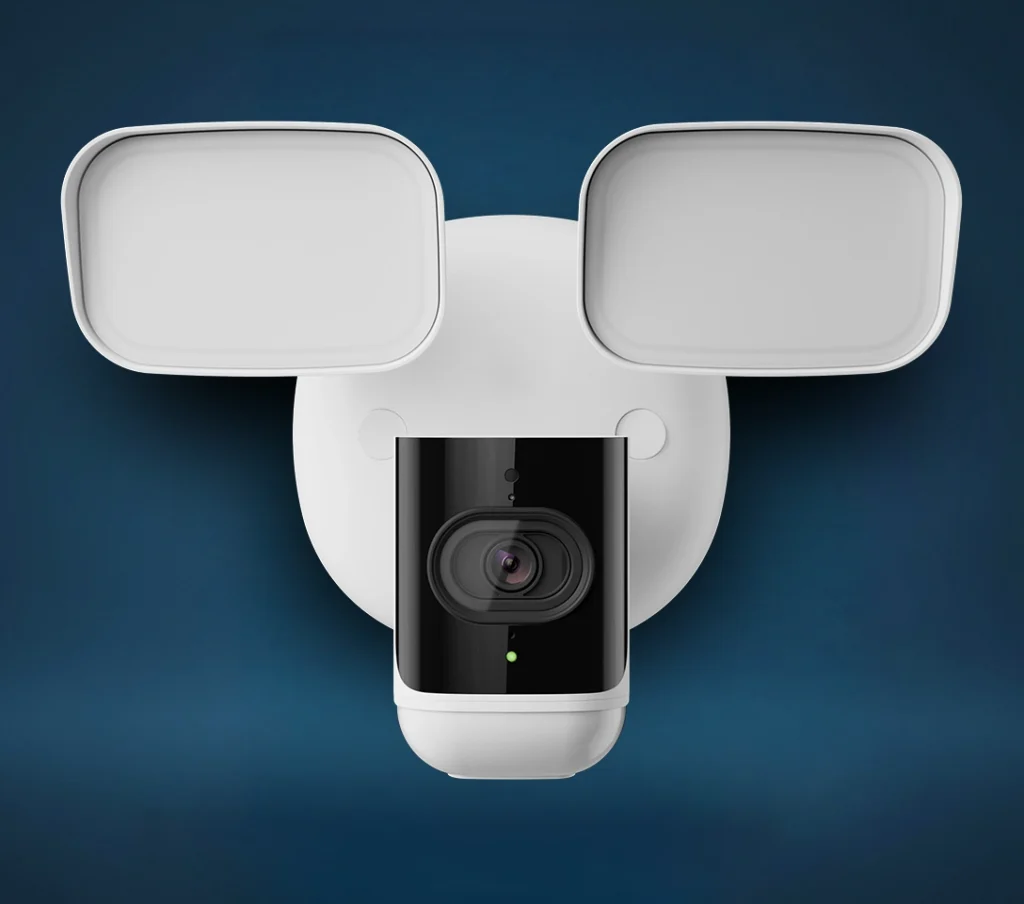
Specs
Models: ADC-V729, ADC-V729AC, ADC-VC729P
Video Resolution: Up to 2688 x 1520, 4MP
Image Sensor: 4MP, 1/2.7” format
Field of View: 117° horizontal, 62° vertical, 141° diagonal
Floodlights: 4000K floodlights, up to 3,000 lumens
Night Vision: Infrared range up to 15 m, about 49 ft
Low-Light Sensitivity: 0.5 lux
Audio: Two-way audio with built-in speaker and siren
Recording Compression: H.264
Recording Options: Cloud video clips and onboard recording options, depending on plan and setup
Wi-Fi Connectivity: Dual-band 802.11 b/g/n/ac 2×2 on Wi-Fi models
Wired Connectivity: Ethernet-only on the PoE model
Weather Rating: IP66 outdoor-rated housing
Operating Temperature: -4°F to 122°F, or -20°C to 50°C
Operating Humidity: 20% to 100%
Dimensions: 305 x 235 x 198 mm, about 12 x 9.25 x 7.8 in
Power Options: 24V DC, AC hardwired 100-240V, or PoE++ depending on model
Mounting: Wall or eave mounting, depending on installation location
Kit Contents
Common kits include the valve plus compatible flood sensors
Help Videos
Outdoor Floodlight Camera
Documentation
Data Sheet
Installation Guide
Water Valve Flyer
LED Status:
- Flashing Yellow
Not yet included into the Z-Wave network or the touch sense button has been disabled. - Flashing Green
Include into the Z-Wave network.
Set to Factory Default
Option 1: Use the IQ Panel to “Clear” the Water Shut-Off Valve. This will remove it from the Z-Wave network and restore factory defaults.
Option 2: Press and hold the touch sense button for 10 beeps, then quickly press it 5 times in a row. If successful the Yellow LED will ash once, followed by the Green LED and a long beep.
Frequently Asked Questions
How do I turn the Outdoor Floodlight Camera lights on or off?
You can turn the floodlights on or off from the Alarm.com app, depending on how your system is set up. Open the camera in the app and look for the light control options. You can also adjust when the lights turn on automatically, such as when motion is detected or when a person, vehicle, or animal is recognized.
Can I control the floodlights from my phone?
Yes. The Outdoor Floodlight Camera can be controlled through the Alarm.com app. You can view live video, turn the lights on or off, use two-way audio, and adjust camera settings. Available controls may vary depending on your service plan and how the camera was installed.
Why do the floodlights keep turning on?
The floodlights may turn on when the camera detects motion, a person, a vehicle, or an animal. They can also be triggered by activity near the camera, including cars, people walking by, pets, branches, shadows, or reflective surfaces. If the lights are turning on too often, your detection settings may need to be adjusted.
How do I stop false alerts from cars, trees, or shadows?
Start by adjusting the camera’s video analytics rules in the Alarm.com app. You may need to change the detection area, reduce sensitivity, or aim the camera away from busy roads, trees, flags, reflective windows, or other high-motion areas. A small angle change can make a big difference. Cameras are smart, but not psychic. Yet.
Can the Outdoor Floodlight Camera tell the difference between people, vehicles, and animals?
Yes. The Outdoor Floodlight Camera supports Video Analytics, which can help identify people, vehicles, and animals. This helps reduce unnecessary alerts and gives you more useful notifications. For best results, make sure the camera has a clear view of the area you want to monitor.
Why am I not getting motion alerts on my phone?
Check that notifications are enabled in both the Alarm.com app and your phone settings. You should also confirm that the camera’s recording rules or video analytics rules are active. If alerts used to work and suddenly stopped, check your internet connection, camera status, and whether your phone is in Do Not Disturb or Focus mode.
How do I view live video from the Outdoor Floodlight Camera?
Open the Alarm.com app and select the Outdoor Floodlight Camera from your video devices. From there, you can view the live feed. If the live view does not load, check whether the camera is online, confirm your internet connection is working, and try closing and reopening the app.
Can I talk through the Outdoor Floodlight Camera?
Yes. The Outdoor Floodlight Camera has two-way audio, allowing you to speak through the camera using the Alarm.com app. This is useful for speaking to someone at the property, warning off unwanted visitors, or giving quick instructions without opening the door.
Why is two-way audio not working?
Make sure your phone microphone permission is enabled for the Alarm.com app. Also check that your phone volume is turned up and that the camera has a strong internet connection. If the video feed is delayed, frozen, or not loading properly, the audio may also be affected.
Does the Outdoor Floodlight Camera record at night?
Yes. The camera is designed for day and night use. It has floodlights for bright nighttime visibility and infrared night vision for low-light viewing. If the night image looks poor, check for glare, nearby reflective surfaces, dirt on the lens, or an installation angle that is bouncing light back into the camera.
Why does the nighttime image look washed out or too bright?
This usually happens when the floodlights reflect off a nearby wall, soffit, window, white fence, or another surface close to the camera. Try adjusting the camera angle or repositioning the light direction. Also clean the camera lens, because dirt, dust, and water spots can make glare worse at night.
Can the Outdoor Floodlight Camera record continuously?
The camera may support recording options such as saved clips and onboard recording, depending on your service plan, settings, and installed equipment. If you are unsure whether continuous or onboard recording is active on your account, contact Grand Alarms and we can confirm what your system currently supports.
What is onboard recording?
Onboard recording allows the camera to save video locally using supported storage, depending on the model and configuration. This can help provide a longer video history than standard cloud clips alone. Availability depends on your camera setup and Alarm.com video service plan.
What are the red and blue warning lights used for?
The red and blue warning lights are deterrence features. They are designed to draw attention when suspicious activity is detected or when manually triggered through the app. They are not a replacement for police response, but they can help make unwanted visitors think twice. A rare win for blinking lights.
Can I trigger a siren or warning sound from the camera?
Yes. The Outdoor Floodlight Camera includes deterrence features such as warning sounds and lights. These may be triggered manually through the app or through automation rules, depending on your setup. If you do not see these controls in the app, your settings or service plan may need to be reviewed.
Why is my Outdoor Floodlight Camera offline?
The most common causes are Wi-Fi issues, power loss, router changes, weak signal, or an internet outage. First, check whether other devices in the home are connected to the internet. Then confirm the camera has power. If your Wi-Fi name or password recently changed, the camera may need to be reconnected.
How do I reconnect the Outdoor Floodlight Camera to Wi-Fi?
If your Wi-Fi network name or password changed, the camera may need to be reconnected through the Alarm.com app or re-added by your security provider. Make sure you have the correct Wi-Fi name and password before starting. The camera should be close enough to the router to maintain a reliable signal.
What should I do if the camera video is lagging or freezing?
Video lag is usually caused by weak Wi-Fi, slow upload speed, or poor signal strength at the camera location. Try rebooting your router, checking your internet speed, and making sure the camera is not too far from your router or access point. Outdoor cameras often need stronger Wi-Fi than people expect. Brick walls are not known for their cooperation.
How do I reset the Outdoor Floodlight Camera?
The camera has a reset/WPS button on the back. For a factory reset, press and hold the reset/WPS button for at least 15 seconds until the LED begins blinking red and green, then wait for the camera to reboot. A factory reset should only be done when necessary, because the camera may need to be reconnected afterward.
Is the Outdoor Floodlight Camera weather-resistant?
Yes. The Outdoor Floodlight Camera is designed for outdoor use and has an IP66 weather-resistant rating. It can handle typical outdoor conditions, but it should still be installed properly and sealed correctly. Poor installation can cause issues even with weather-rated equipment.
Can the Outdoor Floodlight Camera be installed under an eave?
Yes. The camera can be mounted on a wall or under an eave, depending on the model and installation location. The camera angle and light direction should be adjusted so the camera captures the area you actually care about, such as the driveway, walkway, side entrance, backyard, or garage area.
What is the difference between ADC-V729, ADC-V729AC, and ADC-VC729P?
The models are similar, but the main difference is how they are powered and connected. The ADC-V729 uses a 24V DC power supply. The ADC-V729AC is hardwired to AC power. The ADC-VC729P can use PoE++ or a 24V DC power supply. If you are not sure which version you have, check the camera box, installation paperwork, or ask Grand Alarms.
Can I install or move the Outdoor Floodlight Camera myself?
We do not recommend moving or rewiring the camera yourself, especially for hardwired models. The ADC-V729AC connects to electrical wiring, so it should be handled by a qualified professional. If the camera needs to be moved, adjusted, or reconnected, contact Grand Alarms so it can be done safely and correctly.
Why does the camera miss some activity?
The camera may miss activity if the subject is too far away, outside the detection zone, moving too quickly, blocked by an object, or poorly lit. Detection settings also matter. Review the camera’s detection zones and make sure the area you want covered is clearly visible in the camera’s field of view.
How do I clean or maintain the Outdoor Floodlight Camera?
Gently wipe the lens and light area with a soft, dry or slightly damp cloth. Do not use harsh cleaners, pressure washers, or abrasive materials. Check from time to time for spider webs, dirt, snow, ice, or leaves blocking the camera view. Most “camera problems” are not dramatic. Sometimes it is just a spider being a menace.
Refer a Friend or Family Member
When someone you refer joins Grand Alarms, you’ll receive 2 months of free service as a thank-you.
Specs
Models: ADC-V729, ADC-V729AC, ADC-VC729P
Video Resolution: Up to 2688 x 1520, 4MP
Image Sensor: 4MP, 1/2.7” format
Field of View: 117° horizontal, 62° vertical, 141° diagonal
Floodlights: 4000K floodlights, up to 3,000 lumens
Night Vision: Infrared range up to 15 m, about 49 ft
Low-Light Sensitivity: 0.5 lux
Audio: Two-way audio with built-in speaker and siren
Recording Compression: H.264
Recording Options: Cloud video clips and onboard recording options, depending on plan and setup
Wi-Fi Connectivity: Dual-band 802.11 b/g/n/ac 2×2 on Wi-Fi models
Wired Connectivity: Ethernet-only on the PoE model
Weather Rating: IP66 outdoor-rated housing
Operating Temperature: -4°F to 122°F, or -20°C to 50°C
Operating Humidity: 20% to 100%
Dimensions: 305 x 235 x 198 mm, about 12 x 9.25 x 7.8 in
Power Options: 24V DC, AC hardwired 100-240V, or PoE++ depending on model
Mounting: Wall or eave mounting, depending on installation location
Kit Contents
Common kits include the valve plus compatible flood sensors
Documentation
Data Sheet
Installation Guide
Junction Box Installation Guide
Configure PIR Motion Detection
Configure Light Activation Trigger
Create/Edit Warning Light Schedules
Factory Reset to Default Settings
Help Videos
Outdoor Floodlight Camera
Frequently Asked Questions
How do I turn the Outdoor Floodlight Camera lights on or off?
You can turn the floodlights on or off from the Alarm.com app, depending on how your system is set up. Open the camera in the app and look for the light control options. You can also adjust when the lights turn on automatically, such as when motion is detected or when a person, vehicle, or animal is recognized.
Can I control the floodlights from my phone?
Yes. The Outdoor Floodlight Camera can be controlled through the Alarm.com app. You can view live video, turn the lights on or off, use two-way audio, and adjust camera settings. Available controls may vary depending on your service plan and how the camera was installed.
Why do the floodlights keep turning on?
The floodlights may turn on when the camera detects motion, a person, a vehicle, or an animal. They can also be triggered by activity near the camera, including cars, people walking by, pets, branches, shadows, or reflective surfaces. If the lights are turning on too often, your detection settings may need to be adjusted.
How do I stop false alerts from cars, trees, or shadows?
Start by adjusting the camera’s video analytics rules in the Alarm.com app. You may need to change the detection area, reduce sensitivity, or aim the camera away from busy roads, trees, flags, reflective windows, or other high-motion areas. A small angle change can make a big difference. Cameras are smart, but not psychic. Yet.
Can the Outdoor Floodlight Camera tell the difference between people, vehicles, and animals?
Yes. The Outdoor Floodlight Camera supports Video Analytics, which can help identify people, vehicles, and animals. This helps reduce unnecessary alerts and gives you more useful notifications. For best results, make sure the camera has a clear view of the area you want to monitor.
Why am I not getting motion alerts on my phone?
Check that notifications are enabled in both the Alarm.com app and your phone settings. You should also confirm that the camera’s recording rules or video analytics rules are active. If alerts used to work and suddenly stopped, check your internet connection, camera status, and whether your phone is in Do Not Disturb or Focus mode.
How do I view live video from the Outdoor Floodlight Camera?
Open the Alarm.com app and select the Outdoor Floodlight Camera from your video devices. From there, you can view the live feed. If the live view does not load, check whether the camera is online, confirm your internet connection is working, and try closing and reopening the app.
Can I talk through the Outdoor Floodlight Camera?
Yes. The Outdoor Floodlight Camera has two-way audio, allowing you to speak through the camera using the Alarm.com app. This is useful for speaking to someone at the property, warning off unwanted visitors, or giving quick instructions without opening the door.
Why is two-way audio not working?
Make sure your phone microphone permission is enabled for the Alarm.com app. Also check that your phone volume is turned up and that the camera has a strong internet connection. If the video feed is delayed, frozen, or not loading properly, the audio may also be affected.
Does the Outdoor Floodlight Camera record at night?
Yes. The camera is designed for day and night use. It has floodlights for bright nighttime visibility and infrared night vision for low-light viewing. If the night image looks poor, check for glare, nearby reflective surfaces, dirt on the lens, or an installation angle that is bouncing light back into the camera.
Why does the nighttime image look washed out or too bright?
This usually happens when the floodlights reflect off a nearby wall, soffit, window, white fence, or another surface close to the camera. Try adjusting the camera angle or repositioning the light direction. Also clean the camera lens, because dirt, dust, and water spots can make glare worse at night.
Can the Outdoor Floodlight Camera record continuously?
The camera may support recording options such as saved clips and onboard recording, depending on your service plan, settings, and installed equipment. If you are unsure whether continuous or onboard recording is active on your account, contact Grand Alarms and we can confirm what your system currently supports.
What is onboard recording?
Onboard recording allows the camera to save video locally using supported storage, depending on the model and configuration. This can help provide a longer video history than standard cloud clips alone. Availability depends on your camera setup and Alarm.com video service plan.
What are the red and blue warning lights used for?
The red and blue warning lights are deterrence features. They are designed to draw attention when suspicious activity is detected or when manually triggered through the app. They are not a replacement for police response, but they can help make unwanted visitors think twice. A rare win for blinking lights.
Can I trigger a siren or warning sound from the camera?
Yes. The Outdoor Floodlight Camera includes deterrence features such as warning sounds and lights. These may be triggered manually through the app or through automation rules, depending on your setup. If you do not see these controls in the app, your settings or service plan may need to be reviewed.
Why is my Outdoor Floodlight Camera offline?
The most common causes are Wi-Fi issues, power loss, router changes, weak signal, or an internet outage. First, check whether other devices in the home are connected to the internet. Then confirm the camera has power. If your Wi-Fi name or password recently changed, the camera may need to be reconnected.
How do I reconnect the Outdoor Floodlight Camera to Wi-Fi?
If your Wi-Fi network name or password changed, the camera may need to be reconnected through the Alarm.com app or re-added by your security provider. Make sure you have the correct Wi-Fi name and password before starting. The camera should be close enough to the router to maintain a reliable signal.
What should I do if the camera video is lagging or freezing?
Video lag is usually caused by weak Wi-Fi, slow upload speed, or poor signal strength at the camera location. Try rebooting your router, checking your internet speed, and making sure the camera is not too far from your router or access point. Outdoor cameras often need stronger Wi-Fi than people expect. Brick walls are not known for their cooperation.
How do I reset the Outdoor Floodlight Camera?
The camera has a reset/WPS button on the back. For a factory reset, press and hold the reset/WPS button for at least 15 seconds until the LED begins blinking red and green, then wait for the camera to reboot. A factory reset should only be done when necessary, because the camera may need to be reconnected afterward.
Is the Outdoor Floodlight Camera weather-resistant?
Yes. The Outdoor Floodlight Camera is designed for outdoor use and has an IP66 weather-resistant rating. It can handle typical outdoor conditions, but it should still be installed properly and sealed correctly. Poor installation can cause issues even with weather-rated equipment.
Can the Outdoor Floodlight Camera be installed under an eave?
Yes. The camera can be mounted on a wall or under an eave, depending on the model and installation location. The camera angle and light direction should be adjusted so the camera captures the area you actually care about, such as the driveway, walkway, side entrance, backyard, or garage area.
What is the difference between ADC-V729, ADC-V729AC, and ADC-VC729P?
The models are similar, but the main difference is how they are powered and connected. The ADC-V729 uses a 24V DC power supply. The ADC-V729AC is hardwired to AC power. The ADC-VC729P can use PoE++ or a 24V DC power supply. If you are not sure which version you have, check the camera box, installation paperwork, or ask Grand Alarms.
Can I install or move the Outdoor Floodlight Camera myself?
We do not recommend moving or rewiring the camera yourself, especially for hardwired models. The ADC-V729AC connects to electrical wiring, so it should be handled by a qualified professional. If the camera needs to be moved, adjusted, or reconnected, contact Grand Alarms so it can be done safely and correctly.
Why does the camera miss some activity?
The camera may miss activity if the subject is too far away, outside the detection zone, moving too quickly, blocked by an object, or poorly lit. Detection settings also matter. Review the camera’s detection zones and make sure the area you want covered is clearly visible in the camera’s field of view.
How do I clean or maintain the Outdoor Floodlight Camera?
Gently wipe the lens and light area with a soft, dry or slightly damp cloth. Do not use harsh cleaners, pressure washers, or abrasive materials. Check from time to time for spider webs, dirt, snow, ice, or leaves blocking the camera view. Most “camera problems” are not dramatic. Sometimes it is just a spider being a menace.