
Home » Support » Resources » Doorbell Camera Resources » Video Doorbell Ultra+ Resources
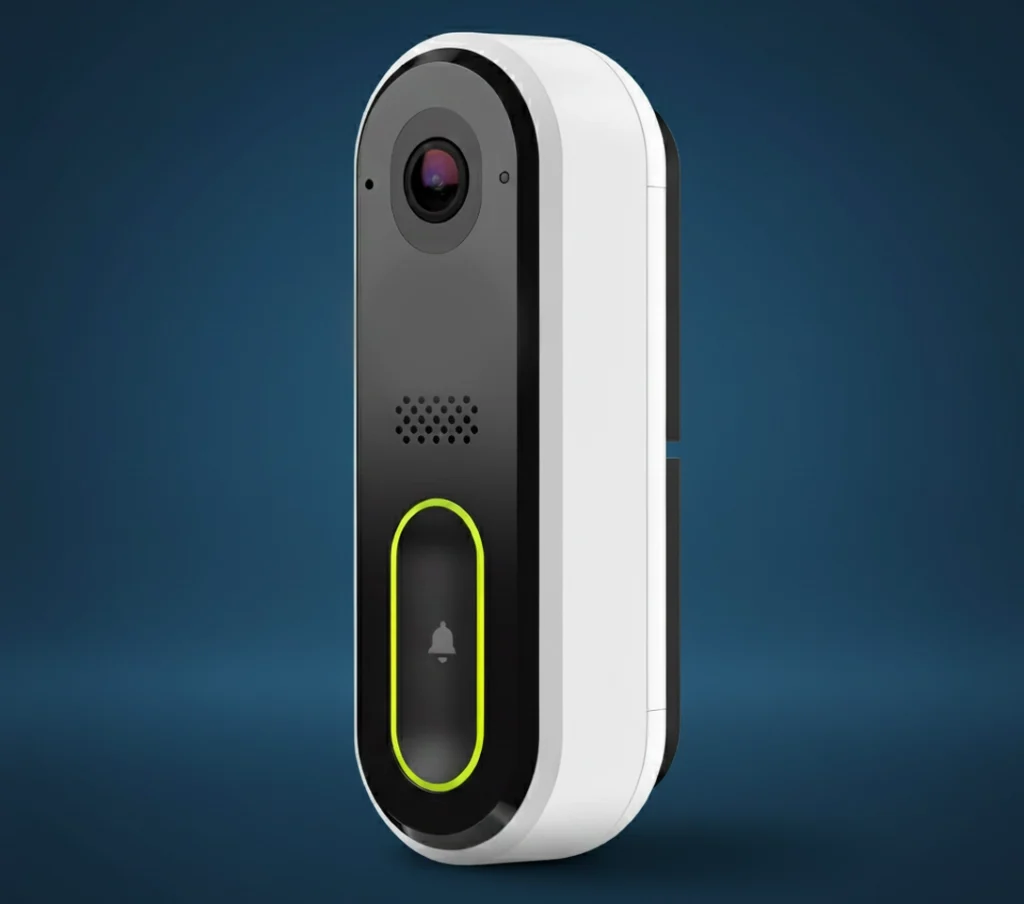
Specs
- Full HD 5MP 1440×1920 camera, High Dynamic Range (HDR) and Infrared Night Vision
- IR range up to 15’ (5 meters)
- Weatherproof Rating: IPX4
- Field of View: Horizontal 115°, Vertical 150°
- Motion Alerts and Event Recording
- Perimeter Alert
- Two-Way Audio
- Power 16-30V AC, 10-30VA*, 15-30V DC, 8W minimum*
- Connectivity 802.11 b/g/n/ac, 2.4 and 5 GHz, dual antenna (2×2 MIMO)
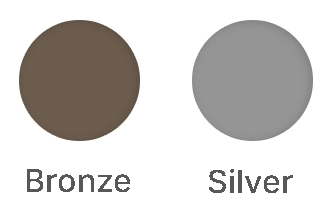
- Colours Available: Bronze, Silver
Colours
Documentation
User Guide
Touchless Doorbell for the Video Doorbell Ultra + allows guests to stand in a designated area to ring the Video Doorbell without touching the device.
To enable the Touchless Doorbell feature
Using the App:
1. Log in to the Customer app.
2. Tap Video.
3. Tap
4. Tap Recording Rules.
5. Tap to edit an existing Video Doorbell Ultra + Video Analytics rule, or tap + Add New Rule.
6. Configure the rule as desired. For more information about Video Analytics rule configuration, see Configure a Video Analytics rule.
7. Tap the Enable Touchless Doorbell toggle to enable Touchless Doorbell.
8. Tap and drag to create an area where the guest can stand that triggers the Video Doorbell to ring.
9. Using the Duration Inside Area of Interest dropdown menu, select how long the guest must stay in the zone to trigger the Video Doorbell.
10. Tap Save.
Touchless Doorbell best practices
• The Ground Zone should be as small as possible to avoid unwanted doorbell triggers. The area should only cover
where the guest must step to trigger the doorbell.
• Avoid creating the Ground Zone in areas that have higher foot traffic (e.g., the path the user takes to check the mail).
• It is recommended to offset the trigger area from the front door to avoid situations where a guest might press the doorbell button before the Touchless Doorbell feature is triggered.
Example: Create the Ground Zone on a portion of the bottom step of the porch instead of directly in front of the door.
Troubleshooting
The touchless doorbell is triggering outside the area of interest
• The Touchless Doorbell feature includes a buffer around the Ground Zone to ensure timely notifications.
• If the user receives notifications when guests are too far away from the Ground Zone, decrease the size of the Ground Zone and test again
Status Light Guide

Enrollment Guide
Before you begin:
You will need to have completed the account setup from the Grand Alarms welcome letter.
The doorbell cannot connect to a 5G network. It is only compatible with 2.4G networks (which are the standard).
We advise factory restarting the doorbell before installing. Please see reference guide for instructions.
The doorbell camera comes with a standard 400 clips of recording per month. Once the 400th upload is reached,
the camera will no longer upload clips until a new month arrives and the clip limit is reset to 0. If the limit is reached then
you will need to manually turn on the recordings from the website to continue receiving clips in the new month when the clip limit resets. You can also call the office to increase your monthly clip limit for an additional monthly charge.
Doorbell Enrollment:
We recommend staying near the doorbell to ensure a strong connection while enrolling the doorbell for the first time.
1. Log into the alarm.com app.
2. Open the side menu and navigate to the “Doorbell Camera” tab (See image “Step 2”)
3. Tap the “+” on Android phones or the “Add New Camera” button on iPhone (See image “Step 3”)
4. Ensure the doorbell is flashing Green & Red, then tap “Next” or “Begin”
5. Name the device whatever you’d like. Ex. Front Doorbell. Tap “Next” (See image “Step 5”)
6. You will now be prompted to connect to the doorbell’s temporary WiFi network. This process is different for Android and iPhone so please follow the instructions on the next page carefully.
Continue for iPhone:
7. On iPhone you will need to leave the app and navigate to the phone’s WiFi settings when prompted. (Settings > WiFi)
8. Once in the WiFi settings, select the Skybell’s temporary network named “Skybell_0000000000” and wait for it to connect. When you see the checkmark, you can head back into the app and continue to step 9.
Continue for Android
7. The next step for Android is to select the Skybell’s temporary WiFi network from the list provided. It will look something like this “Skybell_0000000000”
8. Once selected it will connect to the Skybell’s temporary WiFi.
Finishing Enrollment
9. Next, you will be asked to select your home WiFi network.
10. When you have selected your home’s WiFi network, carefully put in your home’s WiFi password and then wait for the doorbell to configure. This can take several minutes.
Setting Up Notifications
11. After connection with the doorbell and WiFi network is complete, there will be a pop-up that asks you to turn on the push notifications in order to receive alerts from the doorbell through the app.
12. You will also have the option to turn on notifications and recordings for a button push and motion detection. You can choose if you want only one or both options selected. These options will also be part of the pop-up after installation is complete.
13. The enrollment of your doorbell is now complete.
If you have changed your Wi-Fi password
If you have changed your Wi-Fi password, network name or have gotten a new modem/router then you will need to reconnect your video doorbell within your alarm.com smartphone app.
1. Put the doorbell into Access Point (AP) mode by holding the main button until the LED alternates green and red.
2. Log into the Alarm.com App.
3. Tap Menu.
4. Tap Doorbell Camera.
5. Tap Settings.
6. In ‘Add Another Doorbell Camera’ tap Begin Installation.
If the ‘Add Another Doorbell Camera’ does not appear please call Grand Alarms customer support at 416-657-2100.
7. Proceed through the installation wizard. (This is the same process as the initial installation of the Doorbell Camera)
Power Cycling
Power cycling the doorbell will only be needed if the doorbell is having a connection issue or video issue. A power cycle can help the doorbell update it’s firmware which can help to clear any trouble you may experience. To power cycle the doorbell just hold the doorbell button down until it begins to flash blue and then you can let go. Wait for the doorbell to power up (this may take a few minutes) and it should go back to solid green.
Factory Reset
In order to factory reset the doorbell, you will need to hold the doorbell button down until it flashes yellow. This can take up to 80 seconds. A factory reset should only be done before enrolling the doorbell and only if there is an issue with the doorbell that the power cycle has not resolved. Once you do a factory reset, you will need to re-enroll the doorbell again.
Configuring a Video Analytics Rule
To create the Video Analytics rule using the customer app:
Note: Only one recording rule can be created per doorbell camera.
1. Log into the Customer app.
2. Tap Video.
3. Tap .
4. Tap Recording Rules.
5. Tap Add.
6. Tapp Video Analytics.
7. Tap to select the desired Grand Alarms doorbell camera.
Configure the Video Analytics rule
To configure the trigger:
1. In the Rule Name field, enter a name for the recording rule.
2. Click and drag the corners of the shape to cover only the ground where the person’s feet will be, or click and drag inside the shape to move the shape it. To clear the current area of interest and restart, click Clear ground zone.
Use the Detection Sensitivity slider to select the desired sensitivity.
◦ If Only during the following times is selected:
a. Click to select the days of the week to record on.
b. Using the Begin dropdown menu, select the time for the recording rule to start.
c. Using the End dropdown menu, select the time for the recording rule to stop.
To customize when the rule is active:
1. Using the Set Minimum Delay Between Clips dropdown menu, select the desired timeframe. This setting determines how long the camera must wait after recording a clip to trigger another recording.
2. In The Rule will run…, click to select At all times or Only during the following times.
◦ If Only during the following times is selected:
a. Click to select the days of the week to record on.
b. Using the Begin dropdown menu, select the time for the recording rule to start.
c. Using the End dropdown menu, select the time for the recording rule to stop.
3. In Except when…, click to select any available exceptions that turn the rule of,f regardless of the schedule. Options depending on the equipment include: the panel is armed away, the panel is armed stay, and Geo-Device is inside a specified Geo-Fence.
Note: If the location has a security system with multiple partitions, the at-home settings only apply to the first/main partition.
To configure the notifications:
• Click to select the desired notification recipients. It is recommended to use push notifications to a phone using the dropdown option to attach a thumbnail.
• Attach a Thumbnail and Text Only are the available options for Push, SMS, and Email notifications for the Video Doorbell Ultra +.
To configure light-automation rules:
Camera-driven light automation rules require Lights to be enabled on the customer’s service package along with at least one light device enrolled on the account. If these requirements are met, the Light Automation section appears toward the bottom of the Video Analytics Rule.
Note: Lights cannot be enabled during a time when the Video Analytics rule is not set to record (e.g., if the device is set to record only at night, lights cannot be set to turn on during the daytime because no clip would have been recorded).
1. Using the Set Minimum Delay Between Clips dropdown menu, select the desired timeframe. This setting determines how long the camera must wait after recording a clip to trigger another recording.
2. Click to select which lights are to be automated by the rule.
3. In During these time frames, click to select At all times, Only during the following times, or Only after sunset.
◦ If Only during the following times is selected:
a. Click to select which days of the week on which to record.
b. Using the Begin dropdown menu, select the time for the recording rule to start.
c. Using the End dropdown menu, select the time for the recording rule to stop.
Note: Notifications triggered by the Touchless Doorbell feature appear as button press events. The event cannot be changed to something other than a button press.
Getting the most out of your doorbell
Notifications
Notifications are alerts that are sent immediately to your mobile phone when activity is detected by your Grand Alarms Doorbell
Camera. Acknowledging a Doobell Camera push notification will send you directly to the call screen and enter a Two-Way Audio call.
Doorbell Call Notification
• Button Pushed – Receive a notification when the button is pushed. By acknowledging the notification, you will automatically join a Two-Way Audio call. You will receive a live video feed from the Doorbell Camera.
• Motion – Receive a notification when the doorbell detects motion. By acknowledging the notification, you will automatically join a Two-Way Audio call. You will receive a live video feed from the Doorbell Camera.
◦ You can reduce the number of motion-triggered clips by selecting the “Low” motion sensitivity setting.
Navigate to the customer website Video Device Settings page and adjust the “Sensitivity to Motion” slider.
Suggestion: Push is Critical
• Enabling push notifications and adding the necessary recipients are critical for a working Doorbell Camera. Push notifications allow you to instantly see, hear, and speak to visitors at the door.
• We recommend that you select the “Keep me logged in” option on the Login screen in the mobile app. With this feature enabled, you will be able to respond to push notifications from the Doorbell Camera more quickly.
Recording Schedules
Recording schedules control the times and events during which your Doorbell Camera records clips. Recording schedules do not need to match notification settings. For example, you can enable recording schedules for both button and motion events and still only enable notifications for button events.
Every account has a maximum clip limit for both the number of clips that can be uploaded in a month and the total number of clips that can be saved on the account. Clips uploaded from doorbell cameras do count toward that limit.
Types
• Call (Button Pushed) – Record a clip when the doorbell button is pushed.
• Motion – Record a clip when the doorbell detects motion.
◦ Customers can reduce the number of motion-triggered clips by selecting the “Low” motion sensitivity setting.
Navigate to the customer website Video Device Settings page and adjust the “Sensitivity to Motion” slider.
• Event Triggered (e.g., Alarm) – Record a clip after a sensor is activated or after an alarm.
• Note: Recording duration varies but is typically around one minute. In the case where a mobile user joins a call after a button or motion event, clips can be longer. Alarm clips are generally longer.
Intelligent Lighting Automation Rules
Lighting automation allows you to set up rules that trigger Z-Wave lights to turn on or off when the Doorbell Camera detects activity.
Types
• Button Triggered – Turn on/off a light when the Doorbell Camera button is pushed.
• Motion Triggered – Turn on/off a light when the Doorbell Camera detects motion.
• Note: Configure these rules on the Customer Website, in the emPower > Rules page.
Help Videos
Pre-installation Steps
Power Module Installation
Wiring & Mounting
Call Notifications and Recording Rules
Call Actions
FAQs
Are there additional mounting brackets for the Ultra+?
Yes. In addition to the three mounting brackets included with the Ultra+, the optional Wedge Mount Kit includes four additional wedge types.
The additional wedges allow the user to achieve more extreme left/right pans for installation on walls perpendicular to the door. It also adds different options for tilt combined with left/right pan to allow for expanded vFoV to the ground, minimizing the blind spot at the bottom of the field of view to capture smaller packages.
Can the Ultra+ be used in climates that reach higher or lower than the temperature rating?
Yes. Functionality may be reduced during peak winter or summer weather, depending on the climate.
The outer surface of the device, and especially the back plate, are expected to reach higher temperatures than some other Alarm.com video devices. Due to the slim form factor and advanced analytics processing capability, the device will generate heat that can be apparent even at more moderate ambient temperatures.
Alarm.com designed the device to effectively channel heat away from key components and user interaction areas and have conducted thorough testing to ensure safe operation of the device across the full range of operating temperatures and conditions.
High-temperature functionality
The maximum rated temperature 104°F (40°C) is based on testing in a poor Wi-Fi environment, direct sunlight, low wind, and extended continuous periods (i.e., 10 minutes or more) of high resource usage.
Some installations, particularly those in which the device is in better Wi-Fi environments and is not directly exposed to midday sunlight, may be able to operate all or most of the time at higher ambient temperatures than the device is rated for.
Low-temperature functionality
The device is designed to operate with reduced functionality below the minimum rated temperature of -22°F (-30°C). Additionally, full functionality may be maintained below the minimum rated temperature in favourable conditions (i.e., minimal airflow/wind).
Can the Ultra+ use Video Motion Detection and Video Analytics?
Yes. Functionality may be reduced during peak winter or summer weather, depending on the climate.
The outer surface of the device, and especially the back plate, is expected to reach higher temperatures than some other Alarm.com video devices. Due to the slim form factor and advanced analytics processing capability, the device will generate heat that can be apparent even at more moderate ambient temperatures.
Alarm.com designed the device to effectively channel heat away from key components and user interaction areas and have conducted thorough testing to ensure safe operation of the device across the full range of operating temperatures and conditions.
High-temperature functionality
The maximum rated temperature 104°F (40°C) is based on testing in a poor Wi-Fi environment, direct sunlight, low wind, and extended continuous periods (i.e., 10 minutes or more) of high resource usage.
Some installations, particularly those in which the device is in better Wi-Fi environments and is not directly exposed to midday sunlight, may be able to operate all or most of the time at higher ambient temperatures than the device is rated for.
Low-temperature functionality
The device is designed to operate with reduced functionality below the minimum rated temperature of -22°F (-30°C). Additionally, full functionality may be maintained below the minimum rated temperature in favourable conditions (i.e., minimal airflow/wind).
Can the micro USB port power the Ultra+?
Yes. However, it should only be used temporarily for troubleshooting. The Ultra+ backplate acts as a heat sink to regulate its temperature and must be in place for long-term operation. Otherwise, the device could overheat and cause damage to itself and the user.
Refer a Friend or Family Member
When someone you refer joins Grand Alarms, you’ll receive 2 months of free service as a thank-you.
Home » Support » Resources » Doorbell Camera Resources » Video Doorbell Ultra+ Resources
Specs
- Full HD 5MP 1440×1920 camera, High Dynamic Range (HDR) and Infrared Night Vision
- IR range up to 15’ (5 meters)
- Weatherproof Rating: IPX4
- Field of View: Horizontal 115°, Vertical 150°
- Motion Alerts and Event Recording
- Perimeter Alert
- Two-Way Audio
- Power 16-30V AC, 10-30VA*, 15-30V DC, 8W minimum*
- Connectivity 802.11 b/g/n/ac, 2.4 and 5 GHz, dual antenna (2×2 MIMO)
Available Colours
Documentation
User Guide
Touchless Doorbell for the Video Doorbell Ultra + allows guests to stand in a designated area to ring the Video Doorbell without touching the device.
To enable the Touchless Doorbell feature
Using the App:
1. Log in to the Customer app.
2. Tap Video.
3. Tap
4. Tap Recording Rules.
5. Tap to edit an existing Video Doorbell Ultra + Video Analytics rule, or tap + Add New Rule.
6. Configure the rule as desired. For more information about Video Analytics rule configuration, see Configure a Video Analytics rule.
7. Tap the Enable Touchless Doorbell toggle to enable Touchless Doorbell.
8. Tap and drag to create an area where the guest can stand that triggers the Video Doorbell to ring.
9. Using the Duration Inside Area of Interest dropdown menu, select how long the guest must stay in the zone to trigger the Video Doorbell.
10. Tap Save.
Touchless Doorbell best practices
• The Ground Zone should be as small as possible to avoid unwanted doorbell triggers. The area should only cover
where the guest must step to trigger the doorbell.
• Avoid creating the Ground Zone in areas that have higher foot traffic (e.g., the path the user takes to check the mail).
• It is recommended to offset the trigger area from the front door to avoid situations where a guest might press the doorbell button before the Touchless Doorbell feature is triggered.
Example: Create the Ground Zone on a portion of the bottom step of the porch instead of directly in front of the door.
Troubleshooting
The touchless doorbell is triggering outside the area of interest
• The Touchless Doorbell feature includes a buffer around the Ground Zone to ensure timely notifications.
• If the user receives notifications when guests are too far away from the Ground Zone, decrease the size of the Ground Zone and test again
Status Light Guide
Enrollment Guide
Before you begin:
You will need to have completed the account setup from the Grand Alarms welcome letter.
The doorbell cannot connect to a 5G network. It is only compatible with 2.4G networks (which are the standard).
We advise factory restarting the doorbell before installing. Please see reference guide for instructions.
The doorbell camera comes with a standard 400 clips of recording per month. Once the 400th upload is reached,
the camera will no longer upload clips until a new month arrives and the clip limit is reset to 0. If the limit is reached then
you will need to manually turn on the recordings from the website to continue receiving clips in the new month when the clip limit resets. You can also call the office to increase your monthly clip limit for an additional monthly charge.
Doorbell Enrollment:
We recommend staying near the doorbell to ensure a strong connection while enrolling the doorbell for the first time.
1. Log into the alarm.com app.
2. Open the side menu and navigate to the “Doorbell Camera” tab
3. Tap the “+” on Android phones or the “Add New Camera” button on iPhone
4. Ensure the doorbell is flashing Green & Red, then tap “Next” or “Begin”
5. Name the device whatever you’d like. Ex. Front Doorbell. Tap “Next”
6. You will now be prompted to connect to the doorbell’s temporary WiFi network. This process is different for Android and iPhone so please follow the instructions on the next page carefully.
Continue for iPhone:
7. On iPhone you will need to leave the app and navigate to the phone’s WiFi settings when prompted. (Settings > WiFi)
8. Once in the WiFi settings, select the Skybell’s temporary network named “Skybell_0000000000” and wait for it to connect. When you see the checkmark, you can head back into the app and continue to step 9.
Continue for Android
7. The next step for Android is to select the Skybell’s temporary WiFi network from the list provided. It will look something like this “Skybell_0000000000”
8. Once selected it will connect to the Skybell’s temporary WiFi.
Finishing Enrollment
9. Next, you will be asked to select your home WiFi network.
10. When you have selected your home’s WiFi network, carefully put in your home’s WiFi password and then wait for the doorbell to configure. This can take several minutes.
Setting Up Notifications
11. After connection with the doorbell and WiFi network is complete, there will be a pop-up that asks you to turn on the push notifications in order to receive alerts from the doorbell through the app.
12. You will also have the option to turn on notifications and recordings for a button push and motion detection. You can choose if you want only one or both options selected. These options will also be part of the pop-up after installation is complete.
13. The enrollment of your doorbell is now complete.
If you have changed your Wi-Fi password
If you have changed your Wi-Fi password, network name or have gotten a new modem/router then you will need to reconnect your video doorbell within your alarm.com smartphone app.
1. Put the doorbell into Access Point (AP) mode by holding the main button until the LED alternates green and red.
2. Log into the Alarm.com App.
3. Tap Menu.
4. Tap Doorbell Camera.
5. Tap Settings.
6. In ‘Add Another Doorbell Camera’ tap Begin Installation.
If the ‘Add Another Doorbell Camera’ does not appear please call Grand Alarms customer support at 416-657-2100.
7. Proceed through the installation wizard. (This is the same process as the initial installation of the Doorbell Camera)
Power Cycling
Power cycling the doorbell will only be needed if the doorbell is having a connection issue or video issue. A power cycle can help the doorbell update it’s firmware which can help to clear any trouble you may experience. To power cycle the doorbell just hold the doorbell button down until it begins to flash blue and then you can let go. Wait for the doorbell to power up (this may take a few minutes) and it should go back to solid green.
Factory Reset
In order to factory reset the doorbell, you will need to hold the doorbell button down until it flashes yellow. This can take up to 80 seconds. A factory reset should only be done before enrolling the doorbell and only if there is an issue with the doorbell that the power cycle has not resolved. Once you do a factory reset, you will need to re-enroll the doorbell again.
Configuring a Video Analytics Rule
To create the Video Analytics rule using the customer app:
Note: Only one recording rule can be created per doorbell camera.
1. Log into the Customer app.
2. Tap Video.
3. Tap .
4. Tap Recording Rules.
5. Tap Add.
6. Tapp Video Analytics.
7. Tap to select the desired Grand Alarms doorbell camera.
Configure the Video Analytics rule
To configure the trigger:
1. In the Rule Name field, enter a name for the recording rule.
2. Click and drag the corners of the shape to cover only the ground where the person’s feet will be, or click and drag inside the shape to move the shape it. To clear the current area of interest and restart, click Clear ground zone.
Use the Detection Sensitivity slider to select the desired sensitivity.
◦ If Only during the following times is selected:
a. Click to select the days of the week to record on.
b. Using the Begin dropdown menu, select the time for the recording rule to start.
c. Using the End dropdown menu, select the time for the recording rule to stop.
To customize when the rule is active:
1. Using the Set Minimum Delay Between Clips dropdown menu, select the desired timeframe. This setting determines how long the camera must wait after recording a clip to trigger another recording.
2. In The Rule will run…, click to select At all times or Only during the following times.
◦ If Only during the following times is selected:
a. Click to select the days of the week to record on.
b. Using the Begin dropdown menu, select the time for the recording rule to start.
c. Using the End dropdown menu, select the time for the recording rule to stop.
3. In Except when…, click to select any available exceptions that turn the rule of,f regardless of the schedule. Options depending on the equipment include: the panel is armed away, the panel is armed stay, and Geo-Device is inside a specified Geo-Fence.
Note: If the location has a security system with multiple partitions, the at-home settings only apply to the first/main partition.
To configure the notifications:
• Click to select the desired notification recipients. It is recommended to use push notifications to a phone using the dropdown option to attach a thumbnail.
• Attach a Thumbnail and Text Only are the available options for Push, SMS, and Email notifications for the Video Doorbell Ultra +.
To configure light-automation rules:
Camera-driven light automation rules require Lights to be enabled on the customer’s service package along with at least one light device enrolled on the account. If these requirements are met, the Light Automation section appears toward the bottom of the Video Analytics Rule.
Note: Lights cannot be enabled during a time when the Video Analytics rule is not set to record (e.g., if the device is set to record only at night, lights cannot be set to turn on during the daytime because no clip would have been recorded).
1. Using the Set Minimum Delay Between Clips dropdown menu, select the desired timeframe. This setting determines how long the camera must wait after recording a clip to trigger another recording.
2. Click to select which lights are to be automated by the rule.
3. In During these time frames, click to select At all times, Only during the following times, or Only after sunset.
◦ If Only during the following times is selected:
a. Click to select which days of the week on which to record.
b. Using the Begin dropdown menu, select the time for the recording rule to start.
c. Using the End dropdown menu, select the time for the recording rule to stop.
Note: Notifications triggered by the Touchless Doorbell feature appear as button press events. The event cannot be changed to something other than a button press.
Getting the most out of your doorbell
Notifications
Notifications are alerts that are sent immediately to your mobile phone when activity is detected by your Grand Alarms Doorbell
Camera. Acknowledging a Doobell Camera push notification will send you directly to the call screen and enter a Two-Way Audio call.
Doorbell Call Notification
• Button Pushed – Receive a notification when the button is pushed. By acknowledging the notification, you will automatically join a Two-Way Audio call. You will receive a live video feed from the Doorbell Camera.
• Motion – Receive a notification when the doorbell detects motion. By acknowledging the notification, you will automatically join a Two-Way Audio call. You will receive a live video feed from the Doorbell Camera.
◦ You can reduce the number of motion-triggered clips by selecting the “Low” motion sensitivity setting.
Navigate to the customer website Video Device Settings page and adjust the “Sensitivity to Motion” slider.
Suggestion: Push is Critical
• Enabling push notifications and adding the necessary recipients are critical for a working Doorbell Camera. Push notifications allow you to instantly see, hear, and speak to visitors at the door.
• We recommend that you select the “Keep me logged in” option on the Login screen in the mobile app. With this feature enabled, you will be able to respond to push notifications from the Doorbell Camera more quickly.
Recording Schedules
Recording schedules control the times and events during which your Doorbell Camera records clips. Recording schedules do not need to match notification settings. For example, you can enable recording schedules for both button and motion events and still only enable notifications for button events.
Every account has a maximum clip limit for both the number of clips that can be uploaded in a month and the total number of clips that can be saved on the account. Clips uploaded from doorbell cameras do count toward that limit.
Types
• Call (Button Pushed) – Record a clip when the doorbell button is pushed.
• Motion – Record a clip when the doorbell detects motion.
◦ Customers can reduce the number of motion-triggered clips by selecting the “Low” motion sensitivity setting.
Navigate to the customer website Video Device Settings page and adjust the “Sensitivity to Motion” slider.
• Event Triggered (e.g., Alarm) – Record a clip after a sensor is activated or after an alarm.
• Note: Recording duration varies but is typically around one minute. In the case where a mobile user joins a call after a button or motion event, clips can be longer. Alarm clips are generally longer.
Intelligent Lighting Automation Rules
Lighting automation allows you to set up rules that trigger Z-Wave lights to turn on or off when the Doorbell Camera detects activity.
Types
• Button Triggered – Turn on/off a light when the Doorbell Camera button is pushed.
• Motion Triggered – Turn on/off a light when the Doorbell Camera detects motion.
• Note: Configure these rules on the Customer Website, in the emPower > Rules page.
Help Videos
Pre-installation Steps
Power Module Installation
Wiring & Mounting
Call Notifications and Recording Rules
Call Actions
Frequently Asked Questions
Are there additional mounting brackets for the Ultra+?
Yes. In addition to the three mounting brackets included with the Ultra+, the optional Wedge Mount Kit includes four additional wedge types.
The additional wedges allow the user to achieve more extreme left/right pans for installation on walls perpendicular to the door. It also adds different options for tilt combined with left/right pan to allow for expanded vFoV to the ground, minimizing the blind spot at the bottom of the field of view to capture smaller packages.
Can the Ultra+ be used in climates that reach higher or lower than the temperature rating?
Yes. Functionality may be reduced during peak winter or summer weather depending on the climate.
The outer surface of the device, and especially the back plate, are expected to reach higher temperatures than some other Alarm.com video devices. Due to the slim form factor and advanced analytics processing capability, the device will generate heat that can be apparent even at more moderate ambient temperatures.
Alarm.com designed the device to effectively channel heat away from key components and user interaction areas and have conducted thorough testing to ensure safe operation of the device across the full range of operating temperatures and conditions.
High-temperature functionality
The maximum rated temperature 104°F (40°C) is based on testing in a poor Wi-Fi environment, direct sunlight, low wind, and extended continuous periods (i.e., 10 minutes or more) of high resource usage.
Some installations, particularly those in which the device is in better Wi-Fi environments and is not directly exposed to midday sunlight, may be able to operate all or most of the time at higher ambient temperatures than the device is rated for.
Low-temperature functionality
The device is designed to operate with reduced functionality below the minimum rated temperature of -22°F (-30°C). Additionally, full functionality may be maintained below the minimum rated temperature in favourable conditions (i.e., minimal airflow/wind).
Can the Ultra+ use Video Motion Detection and Video Analytics?
Yes. Functionality may be reduced during peak winter or summer weather depending on the climate.
The outer surface of the device, and especially the back plate, are expected to reach higher temperatures than some other Alarm.com video devices. Due to the slim form factor and advanced analytics processing capability, the device will generate heat that can be apparent even at more moderate ambient temperatures.
Alarm.com designed the device to effectively channel heat away from key components and user interaction areas and have conducted thorough testing to ensure safe operation of the device across the full range of operating temperatures and conditions.
High-temperature functionality
The maximum rated temperature 104°F (40°C) is based on testing in a poor Wi-Fi environment, direct sunlight, low wind, and extended continuous periods (i.e., 10 minutes or more) of high resource usage.
Some installations, particularly those in which the device is in better Wi-Fi environments and is not directly exposed to midday sunlight, may be able to operate all or most of the time at higher ambient temperatures than the device is rated for.
Low-temperature functionality
The device is designed to operate with reduced functionality below the minimum rated temperature of -22°F (-30°C). Additionally, full functionality may be maintained below the minimum rated temperature in favourable conditions (i.e., minimal airflow/wind).
Can the micro USB port power the Ultra+?
Yes. However, it should only be used temporarily for troubleshooting. The Ultra+ backplate acts as a heat sink to regulate its temperature and must be in place for long-term operation. Otherwise, the device could overheat and cause damage to itself and the user.
Refer a Friend or Family Member
Share the peace of mind.
When someone you refer joins Grand Alarms, you’ll receive 2 months of free service as a thank-you
Need More Help?
We’re one call away.
Whether it’s setup, troubleshooting, or upgrades, we’re here to help. Call 416-657-2100.