
Home » Support » Resources » Personal Emergency Response Pendants » Belle X2 Personal Emergency Response Pendant Resources
Specs
Name: Belle X2 Personal Emergency Response Pendant
Location Accuracy: < 2.5 m CEP
A-GPS Acquisition Sensitivity: -147 dBm
2-way calling: volume to 78 dBA
Sensors: Fall Detect with user cancel (worn as a pendant), Accelerometer, Gyro sensor
Motion Features: UpAndAbout reporting, Geofencing, Step counting
Power Modes: Ready Mode, Always On, Always Off Mode
Single Battery Charge Lasts more than 45 days in Ready Mode and 14-18 days in Always On Mode
Temperature: -10° to +50° C (operating); -20° to +70° C (storage)
Humidity: 90%RH @ 40° C non-condensing, 36 hrs
Durable: 100 drops @ 30 cm to wood front and back, 1 m to concrete all faces, edges, corners.
Water Protection: Rated IP67 enclosure
Power: AC adaptor 5VDC-1A, Battery Pack Li-polymer 400mAh
Operating Voltage: 3.8V LiPo battery pack
Battery Capacity: 400mAh
Data Support: Secure, private, IoT networking
Buttons: SOS / Reset Button
Indicator light: Red/Blue/Violet LED for Multi function indication
Dimensions: 69 x 35 x 13.8 mm
Weight: 1.28 oz
Accessories: Charging Cradle, Belt Clip, Lanyard
Documentation
Data Sheet
Light Activity
Belle X2 Light Activity
Belle X2 Red Battery Light: Ready and Always On Mode
Battery Low
Flash every 26 seconds
Fully Charged
Solid on cradle
Normal
Off
Battery discharged
Flash every 26 seconds for 2-3 days then off
Charging
Flash every 5 seconds on cradle
Booting
Flash every 2 seconds for 30 seconds
Firmware update
Single red flash while off cradle
Belle X2 Call Light
The call light is blue while on the cradle for Verizon and TELUS carrier devices.
The Call light is violet while on the cradle for AT&T carrier devices.
During a call, the light is solid blue for all carriers.
Ready Mode
Always On Mode
Flash every 5 seconds on cradle: Normal
Flash every 28 seconds: Normal
Flash every 28/40/52 seconds as set in the dealer portal: Normal
Solid during cal: Normal
Solid during call: Normal
Off: Battery discharged
Off: Battery discharged, unless light configuration was turned off in dealer portal
Flash every 1 second on cradle: Out of service, contact support
Flash every 1 second for 5 seconds after button press: Out of service, contact support
Belle X2 Reset Button & Reset Mode
Before shipping or flying with an active Belle X2 device, it is advised to press the reset button on the side of the device for 1-2 seconds.
When the reset button is pressed on Belle X2 devices, the following voice notification is heard: “Powering Off. To power back on, press the SOS button or place the charging cradle”.
The device call light will briefly turn red and turn off after the reset button is pressed, showing the device has been turned off.
If you press the reset button a second time, the device will do nothing, indicating that the device is still off.
Pressing the Belle X2 reset button puts the device into reset mode until:
- The call button is pressed.
- The device is placed into the charging cradle
- The device reports its daily status report. Device will wake briefly to report timer test (including battery level), then sleep, after reset button is pressed
While in reset mode:
- Fall detection is not active.
- Pending commands are not synced.
- Low battery and power off alerts are not sent to customers.
- Devices show “ChargingState4” in Status History in the Dealer Portal.
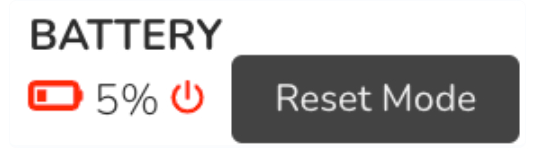
- Red icon is present beside batterly level.
To end reset mode:
- Place the device on the charging cradle or press the call button.
- The first press of the call button results in beeps and the voice notification: Powered on, ready for use.”
- The second press of the call button results in a call to the monitoring center.
Pendant Voice Notifications
Voice Notification
Scenario
“Activation needed. Place device on charging cradle until the blue light flashes once every 5 seconds. Then test the device.”
Call button is pressed prior to receiving activation commands
“Charging.”
The device is placed into the cradle.
“Fall detected. Hold the call button to cancel.”
Fall detected.
“Fall detecton cancelled.”
User cancelled the fall detection by holding the call button.
“Battery low, please charge.”
The device is taken off the cradle when it still has a low battery; at the end of an SOS call when the device has 20% or lower battery; or powering on from reset mode when the device has 20% or lower battery.
“Call failed, please try again.” or “Call failed, cell network not found.”
Call failed due to no network connectivity.
“Powering off. To power back on, press the SOS button or place on the charging cradle.”
Reset button is pressed prior to receiving activation commands or after performing a reset. Call button must be pressed again to hear prompt to activate or call the support center.
“Verizon” and “AT&T”
Heard when the SIM carrier is swapped. The new carrier name is stated when the swap is complete.
How to call for help
- Press and hold the call button and count 1, 2, 3, or wait until the light turns blue, then release the button.
- After a short delay, you will hear a voice message and then tones or ringing.
- The specialist will answer the call.
- The specialist can send emergency personnel or loved ones to help you.
If your Belle does not connect properly, please contact your dealer immediately.
How to test weekly
We recommend that you test Belle weekly.
1. To test, press and hold the call button and count 1, 2, 3, or wait until the light turns blue, then release the button.
2. After a short delay, you will hear a voice message and then tones or ringing.
3. The specialist will answer the call.
4. Tell the specialist you are testing.
If your Belle does not test properly, please contact your dealer immediately.
Hot to remove+ attach lanyard and belt clip
1. Remove the lanyard: Pull apart the silver clasp on the lanyard.
2. Pull the lanyard out through the lanyard attachment loop on the device.
3. Attach belt clip: Slide the device into the bottom of the belt clip and move it upward. Secure the clamp at the top of the belt clip into the lanyard attachment loop on the device. Note: Belle can be charged with the belt clip attached.
4. Remove belt clip: Pull the sides of the belt clip away from the device. Then gently twist to remove the belt clip clamp from the lanyard attachment loop.
How to clean weekly
We recommend that you clean Belle weekly to ensure proper charging.
Take a soft cloth, such as an eyeglass cleaning cloth, and gently rub the gold contacts on the device and charging cradle to remove dirt, oil and debris.
You can also spray household cleaner onto the cleaning cloth (though do not spray directly onto the device or cradle) to remove debris.
App Information
How to download the App (QR code will be listed here)
iOS App
bit.ly/apple-caregivermobile
Android App
bit.ly/android-caregivermobile
How to use the App
First Time Logging into the App:
1. Download the Caregiver Mobile app.
2.Open the app and tap Register.
3.Enter your email address.
4.An authentication code will be emailed to you.
5.Enter the authentication code in the app.
6.Enter a password.
Home
Refresh: Pull the tiles down on the homepage to update the homepage tiles.
Location:
View the last location. Tap the tile to open the location tab and refresh.
First Motion:
View the first motion of the device after 5 am. Tap the tile to view history.
SOS:
View the most recent alarm and view history on the graph. Tap the tile to view details.
Steps:
View steps for today. Tap the tile to view history.
Battery:
View the most recent battery level.
Location
- When you refresh the app home screen, open the Location tab or switch between app screens, device locations are requested every 30 minutes.
- When the Location tab is opened, the last device location will show on the screen.
- Tap Refresh to request an updated location. It can take up to a minute to update the location. Frequently updating the location can impact device battery life.
- Note: The device must have adequate GPS coverage and cellular signal to provide an updated location.
- Tap the pin on the map to view location details.
Device
General
- Switch to view a different device if you monitor multiple devices.
- Change device nickname and add image.
- Ring Device: Play Device Sound to help locate misplaced pendants.
- View subscriber details.
- View Device ID, device model and carrier.
Activity
- Change the daily step goal.
- Adjust the first motion target time.
Alerts
- Manage app notifications for button press, fall detection, low battery, power off, first motion, and no first motion.
- Tap Save after changing settings.
- Note: To modify email and text message alerts, please contact your dealer.
History
- View history of app alerts you have received
Settings
- Support: View contact information for your dealer.
- Caregiver Information: Edit information about the app user. Note: To update subscriber information, please contact your dealer.
Videos
Belle X2 Features
Caregiver App Features
Frequently Asked Questions
How does VoIP work in Bell X2?
VoIP networking in Belle X2 uses Cat 1 bis cellular service and a private network directly with each carrier to maximize up time with minimum complexity and better audio clarity upstream and downstream.
VoIP in Belle X2 does not require or use internet access.
How can customers check their battery level?
When customers press their button, they can ask AVA or an operator, “What is my battery level?” AVA and the operator will share the most recently reported battery level.
Customers and emergency contacts can also use the caregiver app to check their battery level anytime.
What to do if the Belle X2 call button light does not turn red within 5 minutes of the device being placed on the charger?
Make sure charger is plugged into a working outlet not controlled by a switch, and that the red light on the back of the charger is lit when the charger is plugged in.
Make sure the device is seated properly in the cradle-slide the device into the cradle along the grooves in the side of the cradle.
If battery indicator light still does not illuminate and device does not state “charging,” uses a soft cloth to wipe the gold charging contacts on the device and cradle.
What to do if the device does not make a call with the SOS button is pressed?
This can be caused by the battery being depleted, or the SOS button is not pressed for long enough.
If battery is depleted:
- Place device on charger and fully charge the battery.
- If device battery has been dead for a long time, leave the device on the charger for 6 hours, take it off, and then put it back on the charger until the SOS button light is solid red.
If battery is not depleted:
- Ensure you press and hold the SOS button to turn on the device. The device will say “Powered on, ready for use.”
- Then press the SOS button again to make a call to the monitoring center.
What do I do if the device says "calling the support center" and then says "called failed, cell network not found."
This can be due to lack of coverage or weak signal strength at the customer’s location.
Check cellular coverage in the customer’s area for their carrier. Coverage may be affected by structure of home or environment.
If multiple calls fail, please swap to the other carrier in the dealer portal.
If the carrier swaps has begun, check the dealer portal Timeline to see when the other carrier has been activated. Once the second carrier has activated, you can test the device.
What do I do if the device connects to AVA or the operator but the call quality is poor?
- Move to another location and test again.
- In Status History in the dealer portal, check cell strength and cell signal to noise ratio. -85 to -90 RSSI cell signal strength should make calls.
- If you see consistently poor quality in status history (-91 or below RSSI), do a carrier swap to see if cell signal strength on the other carrier is better (-75 to -85).
Cell signal to noise ratio is defined as a value to describe the ratio of signal power compared to signal noise.
- Values above 0 advise that there is more signal than noise.
- The higher the value above zero, the better the signal power.
Cell signal strength is defined as RSSI (dBm) cell signal strength indicators and value, sent to call center on E600 signal:
- <-85: Poor
- -85 through -74: Fair
- -74 through -65: Good
- >-65: Excellent
What can cause the device battery to drain more quickly than expected?
Consistently fair to poor signal
- Check Status History to see if the device consistently has fair/poor signal
- If you see consistently poor quality in status history (-91 or below RSSI), do a carrier swap to see if cell signal strength on the other carrier is better (-75 to -85).
Fall detection for an active person can impact battery
- A very active person with fall detection enabled would move the device very often, which causes the device to frequently check motions against the fall detection algorithm, which can drain the battery.
- If the subscriber is very active and does not need fall detection, you can turn off fall activation to help the battery last longer.
Frequent Caregiver App usage
- If an app user checks the device location in the Caregiver App many times per day, it will cause the battery drain from the GPS turning on and sending locations.
Always On Mode
- Devices in Always On Mode will last for up to about 14-18 days per charge, and devices in Ready Mode was last up to 45+ days
- If the subscriber does not need the Caregiver App or on-demand locations, you can change the power mode to Ready Mode to extend the battery life.
How do Iswap the device between Verizon and AT&T?
You can use the Becklar PH&S dealer portal or API to swap the device carrier.
See the carrier swap section for over the air and manual swap instructions.
Why do I hear different sounds on Belle X2 after the SOS button is pressed?
When you press the SOS button, you may hear tones, ringing and/or music as Belle X2 connects to the network and you call goes through different parts of our system to connect to the monitoring center operator.
These sounds are normal.
Why don't I see a device phone number in Stages for my Belle X2?
Belle X2 does not have a static device phone in Stages. The device phone number is assigned when the device SOS button is pressed.
How do I change device language on Belle X2 between English and French Canadian?
- To change the language, select the new device language on the device page.
- Place the device on the cradle.
- “Pending commands” will show on the device page in the Commands section.
Note: I may take several minutes for the device to sync the language change. - You can refresh the commands section. When “No Pending Commands” displays, the language change has completed.
- You can test the language change by removing the device from the cradly and placing it back on the cradle. The device should state “charging” in the new language.
Refer a Friend or Family Member
When someone you refer joins Grand Alarms, you’ll receive 2 months of free service as a thank-you.
Home » Support » Resources » Personal Emergency Response Pendants » Belle X2 Personal Emergency Response Pendant Resources
Specs
Name: Belle X2 Personal Emergency Response Pendant
Location Accuracy: < 2.5 m CEP
A-GPS Acquisition Sensitivity: -147 dBm
2-way calling: volume to 78 dBA
Sensors: Fall Detect with user cancel (worn as a pendant), Accelerometer, Gyro sensor
Motion Features: UpAndAbout reporting, Geofencing, Step counting
Power Modes: Ready Mode, Always On, Always Off Mode
Single Battery Charge Lasts more than 45 days in Ready Mode and 14-18 days in Always On Mode
Temperature: -10° to +50° C (operating); -20° to +70° C (storage)
Humidity: 90%RH @ 40° C non-condensing, 36 hrs
Durable: 100 drops @ 30 cm to wood front and back, 1 m to concrete all faces, edges, corners.
Water Protection: Rated IP67 enclosure
Power: AC adaptor 5VDC-1A, Battery Pack Li-polymer 400mAh
Operating Voltage: 3.8V LiPo battery pack
Battery Capacity: 400mAh
Data Support: Secure, private, IoT networking
Buttons: SOS / Reset Button
Indicator light: Red/Blue/Violet LED for Multi function indication
Dimensions: 69 x 35 x 13.8 mm
Weight: 1.28 oz
Accessories: Charging Cradle, Belt Clip, Lanyard
Documentation
Data Sheet
Light Activity
Belle X2 Light Activity
Belle X2 Red Battery Light: Ready and Always On Mode
Battery Low
Fully Charged
Normal
Battery discharged
Charging
Booting
Firmware update
Flash every 26 seconds
Solid on cradle
Off
Flash every 26 seconds for 2-3 days then off
Flash every 5 seconds on cradle
Flash every 2 seconds for 30 seconds
Single red flash while off cradle
Belle X2 Call Light
The call light is blue while on the cradle for Verizon and TELUS carrier devices.
The Call light is violet while on the cradle for AT&T carrier devices.
During a call, the light is solid blue for all carriers.
Ready Mode
Always On Mode
Flash every 5 seconds on cradle: Normal
Flash every 28 seconds: Normal
Flash every 28/40/52 seconds as set in the dealer portal: Normal
Solid during cal: Normal
Solid during call: Normal
Off: Battery discharged
Off: Battery discharged, unless light configuration was turned off in dealer portal
Flash every 1 second on cradle: Out of service, contact support
Flash every 1 second for 5 seconds after button press: Out of service, contact support
Belle X2 Reset Button & Reset Mode
Before shipping or flying with an active Belle X2 device, it is advised to press the reset button on the side of the device for 1-2 seconds.
When the reset button is pressed on Belle X2 devices, the following voice notification is heard: “Powering Off. To power back on, press the SOS button or place the charging cradle”.
The device call light will briefly turn red and turn off after the reset button is pressed, showing the device has been turned off.
If you press the reset button a second time, the device will do nothing, indicating that the device is still off.
Pressing the Belle X2 reset button puts the device into reset mode until:
- The call button is pressed.
- The device is placed into the charging cradle
- The device reports its daily status report. Device will wake briefly to report timer test (including battery level), then sleep, after reset button is pressed
While in reset mode:
- Fall detection is not active.
- Pending commands are not synced.
- Low battery and power off alerts are not sent to customers.
- Devices show “ChargingState4” in Status History in the Dealer Portal.
- Red icon is present beside batterly level.
To end reset mode:
- Place the device on the charging cradle or press the call button.
- The first press of the call button results in beeps and the voice notification: Powered on, ready for use.”
- The second press of the call button results in a call to the monitoring center.
Pendant Voice Notifications
Voice Notification
Scenario
“Activation needed. Place device on charging cradle until the blue light flashes once every 5 seconds. Then test the device.”
Call button is pressed prior to receiving activation commands
“Charging.”
The device is placed into the cradle.
“Fall detected. Hold the call button to cancel.”
Fall detected.
“Fall detecton cancelled.”
User cancelled the fall detection by holding the call button.
“Battery low, please charge.”
The device is taken off the cradle when it still has a low battery; at the end of an SOS call when the device has 20% or lower battery; or powering on from reset mode when the device has 20% or lower battery.
“Call failed, please try again.” or “Call failed, cell network not found.”
Call failed due to no network connectivity.
“Powering off. To power back on, press the SOS button or place on the charging cradle.”
Reset button is pressed prior to receiving activation commands or after performing a reset. Call button must be pressed again to hear prompt to activate or call the support center.
“Verizon” and “AT&T”
Heard when the SIM carrier is swapped. The new carrier name is stated when the swap is complete.
How to call for help
- Press and hold the call button and count 1, 2, 3, or wait until the light turns blue, then release the button.
- After a short delay, you will hear a voice message and then tones or ringing.
- The specialist will answer the call.
- The specialist can send emergency personnel or loved ones to help you.
If your Belle does not connect properly, please contact your dealer immediately.
How to test weekly
We recommend that you test Belle weekly.
1. To test, press and hold the call button and count 1, 2, 3, or wait until the light turns blue, then release the button.
2. After a short delay, you will hear a voice message and then tones or ringing.
3. The specialist will answer the call.
4. Tell the specialist you are testing.
If your Belle does not test properly, please contact your dealer immediately.
Hot to remove+ attach lanyard and belt clip
1. Remove the lanyard: Pull apart the silver clasp on the lanyard.
2. Pull the lanyard out through the lanyard attachment loop on the device.
3. Attach belt clip: Slide the device into the bottom of the belt clip and move it upward. Secure the clamp at the top of the belt clip into the lanyard attachment loop on the device. Note: Belle can be charged with the belt clip attached.
4. Remove belt clip: Pull the sides of the belt clip away from the device. Then gently twist to remove the belt clip clamp from the lanyard attachment loop.
How to clean weekly
We recommend that you clean Belle weekly to ensure proper charging.
Take a soft cloth, such as an eyeglass cleaning cloth, and gently rub the gold contacts on the device and charging cradle to remove dirt, oil and debris.
You can also spray household cleaner onto the cleaning cloth (though do not spray directly onto the device or cradle) to remove debris.
App Information
How to download the App (QR code will be listed here)
iOS App
bit.ly/apple-caregivermobile
Android App
bit.ly/android-caregivermobile
How to use the App
First Time Logging into the App:
1. Download the Caregiver Mobile app.
2.Open the app and tap Register.
3.Enter your email address.
4.An authentication code will be emailed to you.
5.Enter the authentication code in the app.
6.Enter a password.
Home
Refresh: Pull the tiles down on the homepage to update the homepage tiles.
Location:
View the last location. Tap the tile to open the location tab and refresh.
First Motion:
View the first motion of the device after 5 am. Tap the tile to view history.
SOS:
View the most recent alarm and view history on the graph. Tap the tile to view details.
Steps:
View steps for today. Tap the tile to view history.
Battery:
View the most recent battery level.
Location
- When you refresh the app home screen, open the Location tab or switch between app screens, device locations are requested every 30 minutes.
- When the Location tab is opened, the last device location will show on the screen.
- Tap Refresh to request an updated location. It can take up to a minute to update the location. Frequently updating the location can impact device battery life.
- Note: The device must have adequate GPS coverage and cellular signal to provide an updated location.
- Tap the pin on the map to view location details.
Device
General
- Switch to view a different device if you monitor multiple devices.
- Change device nickname and add image.
- Ring Device: Play Device Sound to help locate misplaced pendants.
- View subscriber details.
- View Device ID, device model and carrier.
Activity
- Change the daily step goal.
- Adjust the first motion target time.
Alerts
- Manage app notifications for button press, fall detection, low battery, power off, first motion, and no first motion.
- Tap Save after changing settings.
- Note: To modify email and text message alerts, please contact your dealer.
History
- View history of app alerts you have received
Settings
- Support: View contact information for your dealer.
- Caregiver Information: Edit information about the app user. Note: To update subscriber information, please contact your dealer.
Videos
Belle X2 Features
Caregiver App Features
Frequently Asked Questions
How does VoIP work in Bell X2?
VoIP networking in Belle X2 uses Cat 1 bis cellular service and a private network directly with each carrier to maximize up time with minimum complexity and better audio clarity upstream and downstream.
VoIP in Belle X2 does not require or use internet access.
How can customers check their battery level?
When customers press their button, they can ask AVA or an operator, “What is my battery level?” AVA and the operator will share the most recently reported battery level.
Customers and emergency contacts can also use the caregiver app to check their battery level anytime.
What to do if the Belle X2 call button light does not turn red within 5 minutes of the device being placed on the charger?
Make sure charger is plugged into a working outlet not controlled by a switch, and that the red light on the back of the charger is lit when the charger is plugged in.
Make sure the device is seated properly in the cradle-slide the device into the cradle along the grooves in the side of the cradle.
If battery indicator light still does not illuminate and device does not state “charging,” uses a soft cloth to wipe the gold charging contacts on the device and cradle.
What to do if the device does not make a call with the SOS button is pressed?
This can be caused by the battery being depleted, or the SOS button is not pressed for long enough.
If battery is depleted:
- Place device on charger and fully charge the battery.
- If device battery has been dead for a long time, leave the device on the charger for 6 hours, take it off, and then put it back on the charger until the SOS button light is solid red.
If battery is not depleted:
- Ensure you press and hold the SOS button to turn on the device. The device will say “Powered on, ready for use.”
- Then press the SOS button again to make a call to the monitoring center.
What do I do if the device says "calling the support center" and then says "called failed, cell network not found."
This can be due to lack of coverage or weak signal strength at the customer’s location.
Check cellular coverage in the customer’s area for their carrier. Coverage may be affected by structure of home or environment.
If multiple calls fail, please swap to the other carrier in the dealer portal.
If the carrier swaps has begun, check the dealer portal Timeline to see when the other carrier has been activated. Once the second carrier has activated, you can test the device.
What do I do if the device connects to AVA or the operator but the call quality is poor?
- Move to another location and test again.
- In Status History in the dealer portal, check cell strength and cell signal to noise ratio. -85 to -90 RSSI cell signal strength should make calls.
- If you see consistently poor quality in status history (-91 or below RSSI), do a carrier swap to see if cell signal strength on the other carrier is better (-75 to -85).
Cell signal to noise ratio is defined as a value to describe the ratio of signal power compared to signal noise.
- Values above 0 advise that there is more signal than noise.
- The higher the value above zero, the better the signal power.
Cell signal strength is defined as RSSI (dBm) cell signal strength indicators and value, sent to call center on E600 signal:
- <-85: Poor
- -85 through -74: Fair
- -74 through -65: Good
- >-65: Excellent
What can cause the device battery to drain more quickly than expected?
Consistently fair to poor signal
- Check Status History to see if the device consistently has fair/poor signal
- If you see consistently poor quality in status history (-91 or below RSSI), do a carrier swap to see if cell signal strength on the other carrier is better (-75 to -85).
Fall detection for an active person can impact battery
- A very active person with fall detection enabled would move the device very often, which causes the device to frequently check motions against the fall detection algorithm, which can drain the battery.
- If the subscriber is very active and does not need fall detection, you can turn off fall activation to help the battery last longer.
Frequent Caregiver App usage
- If an app user checks the device location in the Caregiver App many times per day, it will cause the battery drain from the GPS turning on and sending locations.
Always On Mode
- Devices in Always On Mode will last for up to about 14-18 days per charge, and devices in Ready Mode was last up to 45+ days
- If the subscriber does not need the Caregiver App or on-demand locations, you can change the power mode to Ready Mode to extend the battery life.
How do Iswap the device between Verizon and AT&T?
You can use the Becklar PH&S dealer portal or API to swap the device carrier.
See the carrier swap section for over the air and manual swap instructions.
Why do I hear different sounds on Belle X2 after the SOS button is pressed?
When you press the SOS button, you may hear tones, ringing and/or music as Belle X2 connects to the network and you call goes through different parts of our system to connect to the monitoring center operator.
These sounds are normal.
Why don't I see a device phone number in Stages for my Belle X2?
Belle X2 does not have a static device phone in Stages. The device phone number is assigned when the device SOS button is pressed.
How do I change device language on Belle X2 between English and French Canadian?
- To change the language, select the new device language on the device page.
- Place the device on the cradle.
- “Pending commands” will show on the device page in the Commands section.
Note: I may take several minutes for the device to sync the language change. - You can refresh the commands section. When “No Pending Commands” displays, the language change has completed.
- You can test the language change by removing the device from the cradly and placing it back on the cradle. The device should state “charging” in the new language.
